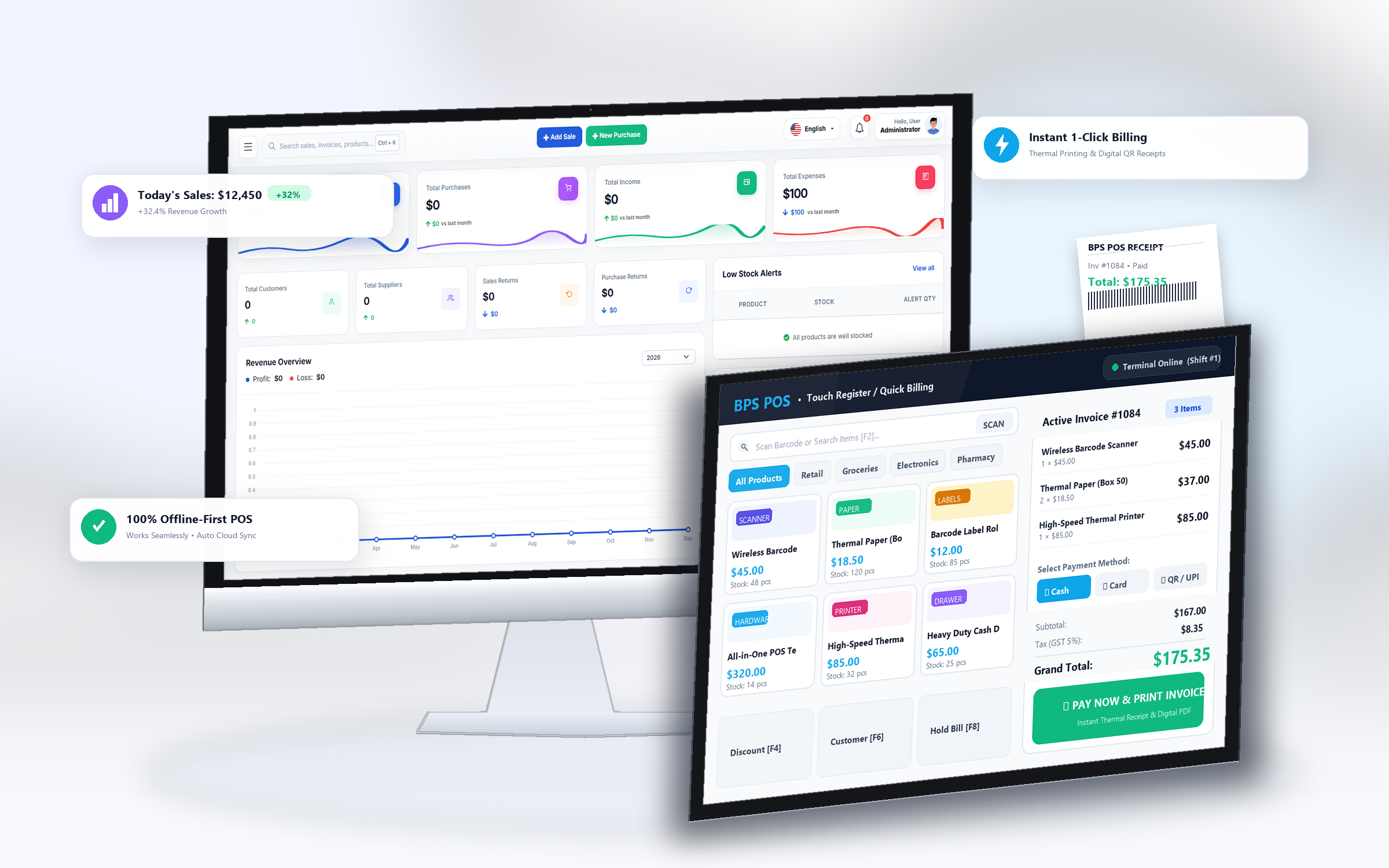
Expanding from a single shop to a multi-store chain requires centralized software. BPS POS Multi-Branch Module lets you manage unlimited retail outlets, allocate local stock, assign dedicated staff, and review consolidated sales from one dashboard.
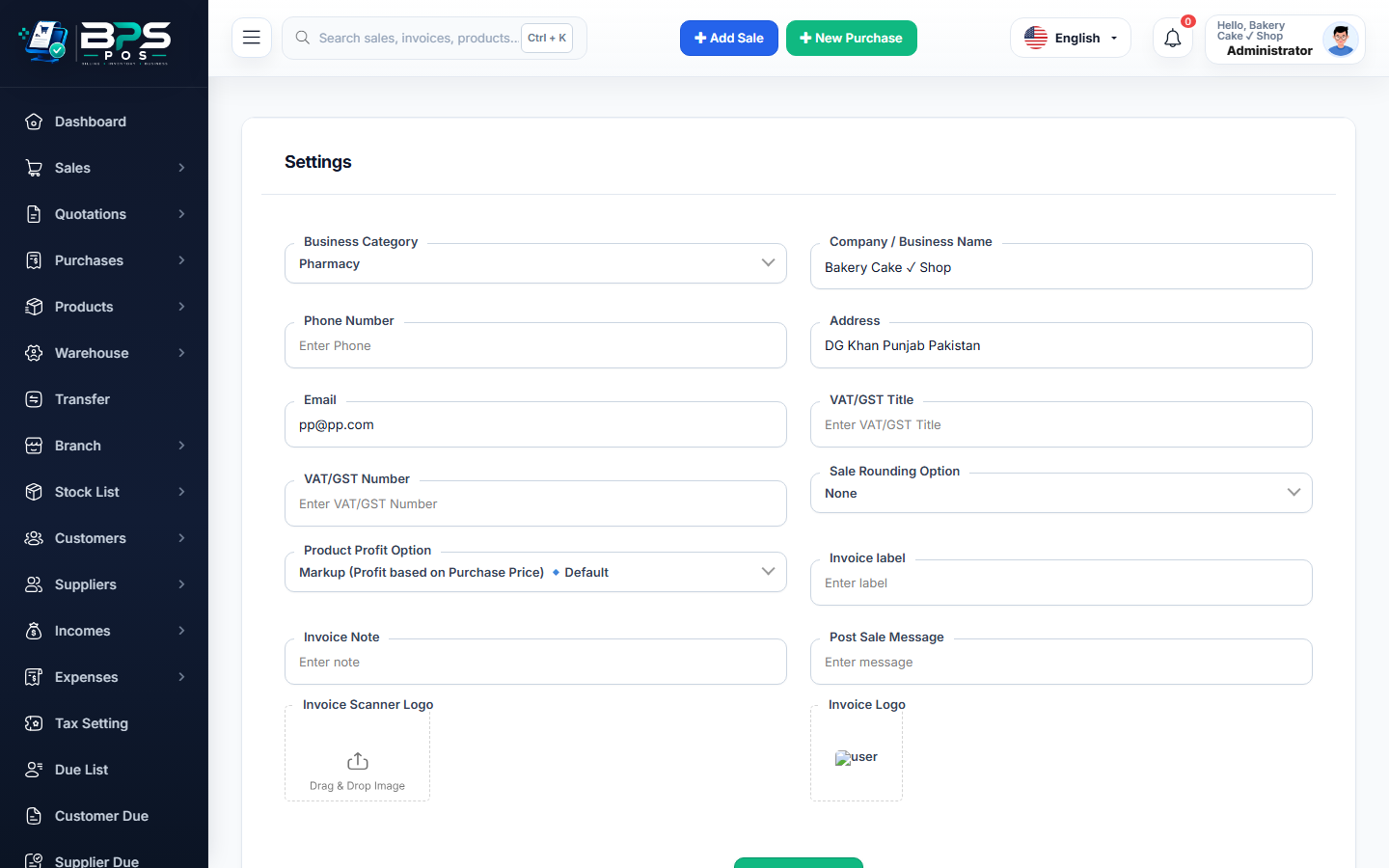
Figure: BPS POS Multi-Branch Outlets Management Screen in BPS POS.
Adding a New Store Branch Outlet
Follow these step-by-step instructions inside your BPS POS dashboard to configure and operate this workflow seamlessly:
- Go to Settings → Branches → Add Branch.
- Enter Branch Profile: Input Branch Name (e.g., Downtown Outlet, Mall of Emirates Branch), Phone, Email, and City Address.
- Assign Branch Manager: Select an authorized manager user account for this location.
- Set Receipt Customization: Configure location-specific receipt headers, tax numbers, and footer phone lines.
- Save & Activate: The branch is live; inventory transfers and branch-specific cashier logins are now enabled.
BPS POS Pro Tip & Best Practice
Create independent cash register shifts and bank accounts per branch to isolate local cash flow while monitoring consolidated profits.
Why This Workflow Matters for Your Business
Lightning-Fast Operations
Eliminate cashier bottlenecks, reduce customer waiting times, and handle peak rush hours effortlessly.
100% Financial Accuracy
Automate tax math, stock deductions, and ledger balances to eliminate human calculation mistakes.
Frequently Asked Questions (FAQs)
Can product master catalogs be shared across all branches?
Yes, master products, barcodes, and categories are created once centrally and shared across all retail outlets.
Ready to Upgrade Your Retail Billing?
Experience lightning-fast billing, automated stock tracking, and multi-branch control with BPS POS.
Explore Pricing Plans →