Not every employee should have access to your profit reports or deletion controls. BPS POS Role-Based Access Control (RBAC) allows you to create custom roles with precise operational boundaries.
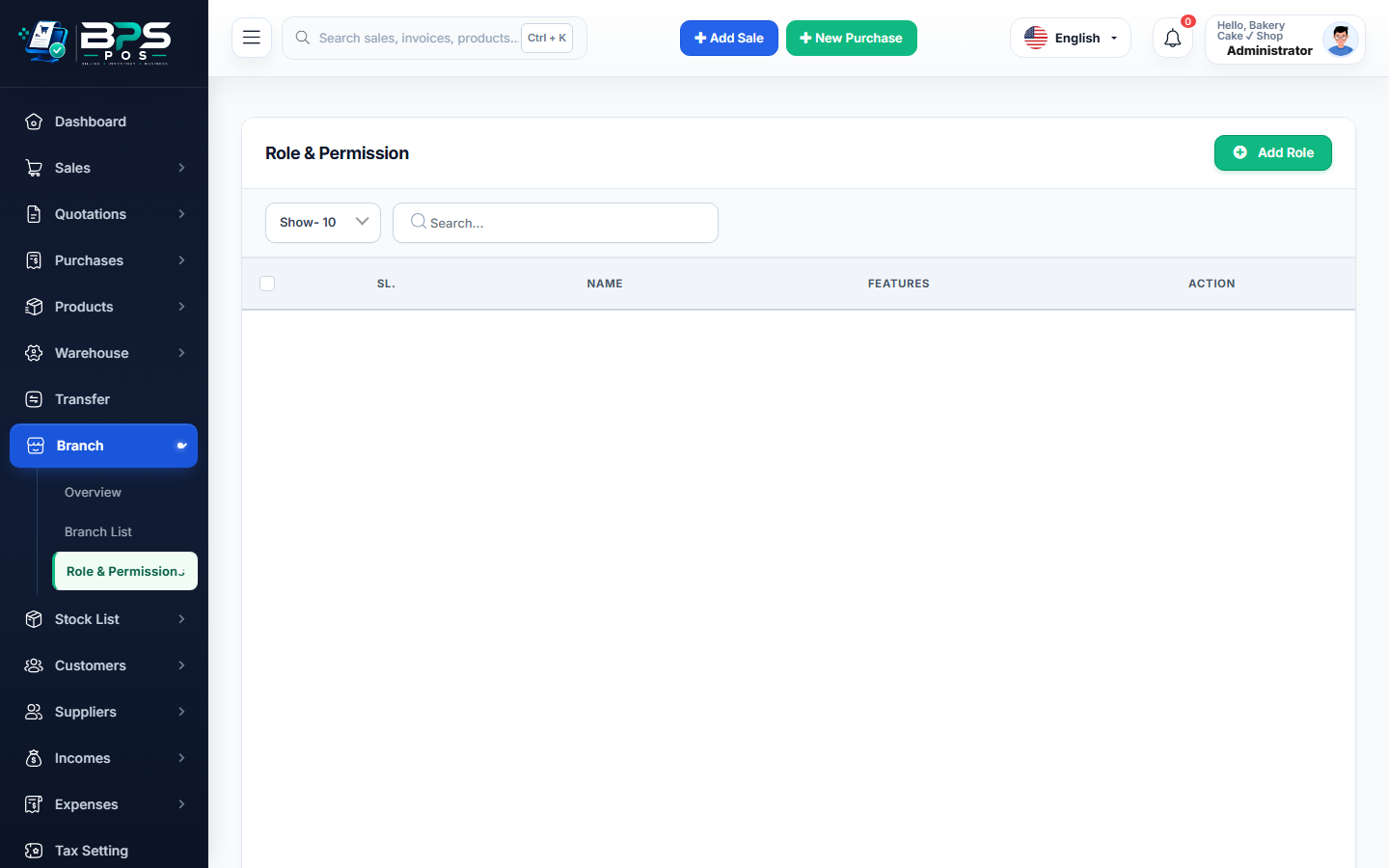
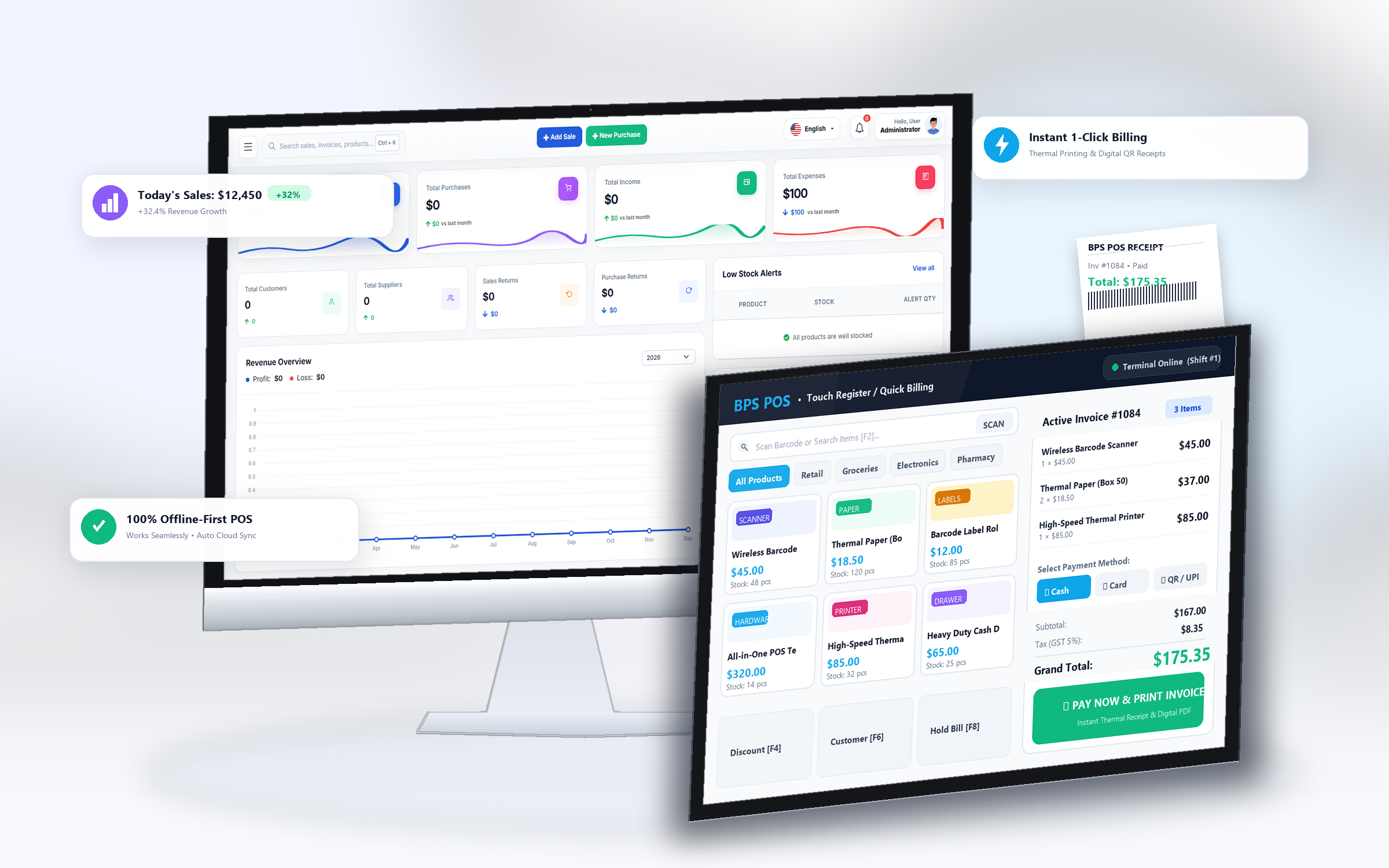
Figure: BPS POS Create Custom Staff Roles Management Screen in BPS POS.
Creating Custom Staff Roles
Follow these step-by-step instructions inside your BPS POS dashboard to configure and operate this workflow seamlessly:
- Go to Settings → Staff Roles → Add Role.
- Name the Role: E.g., "Counter Cashier", "Inventory Supervisor", "Branch Accountant".
- Select Role Level: Assign role hierarchy priority.
- Assign Base Template: Start with pre-configured templates (e.g. Standard Cashier) to save setup time.
- Save Role: Assign the role to existing or new user accounts in Staff → Users.
BPS POS Pro Tip & Best Practice
Never give cashiers access to the "Delete Invoices" or "Edit Product Cost Prices" permissions.
Why This Workflow Matters for Your Business
Lightning-Fast Operations
Eliminate cashier bottlenecks, reduce customer waiting times, and handle peak rush hours effortlessly.
100% Financial Accuracy
Automate tax math, stock deductions, and ledger balances to eliminate human calculation mistakes.
Frequently Asked Questions (FAQs)
Can I create an Accountant role that can view reports but cannot bill on POS?
Yes! Simply check "View Financial Reports" and uncheck "Access POS Billing Screen".
Ready to Upgrade Your Retail Billing?
Experience lightning-fast billing, automated stock tracking, and multi-branch control with BPS POS.
Explore Pricing Plans →