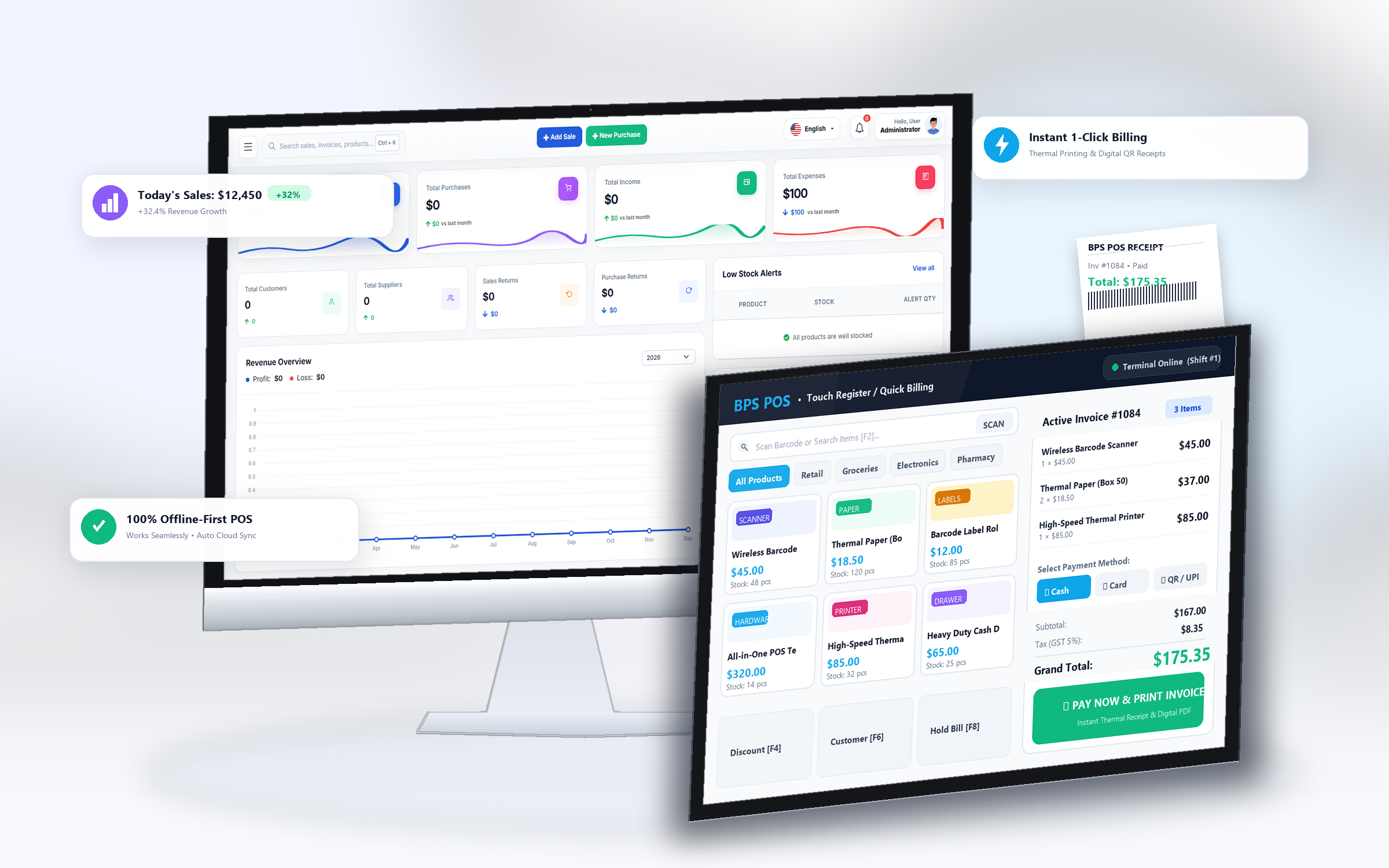
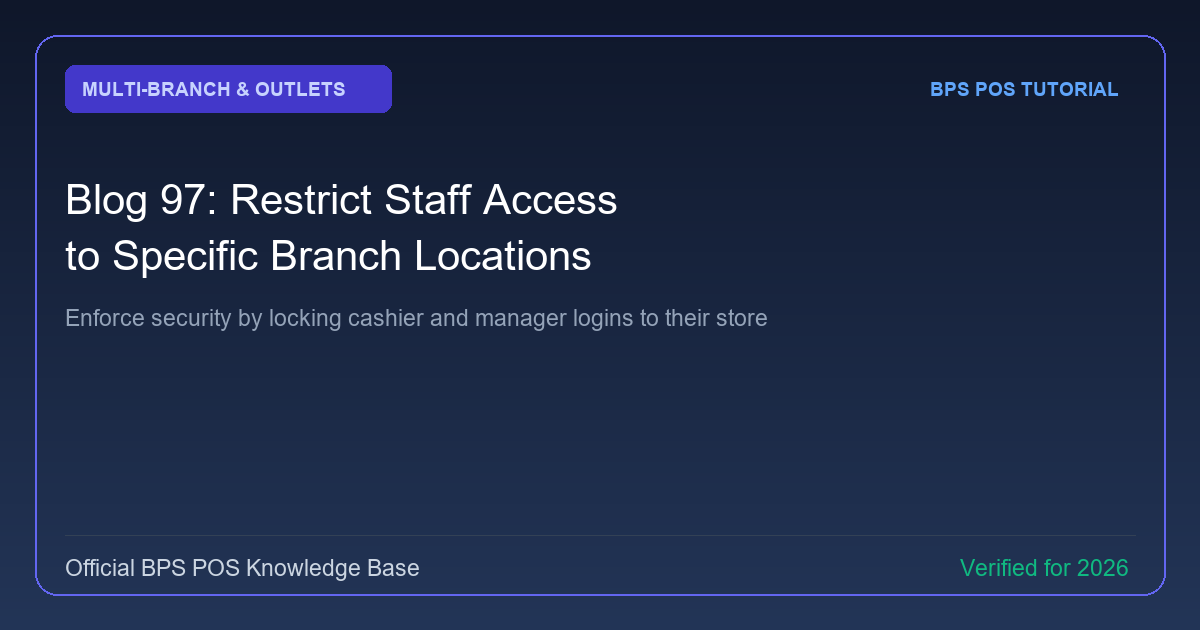
Cashiers and store managers at Branch A should never view sensitive sales numbers or customer ledgers from Branch B. BPS POS Location-Based Access Control strictly fences employee accounts to their designated store.
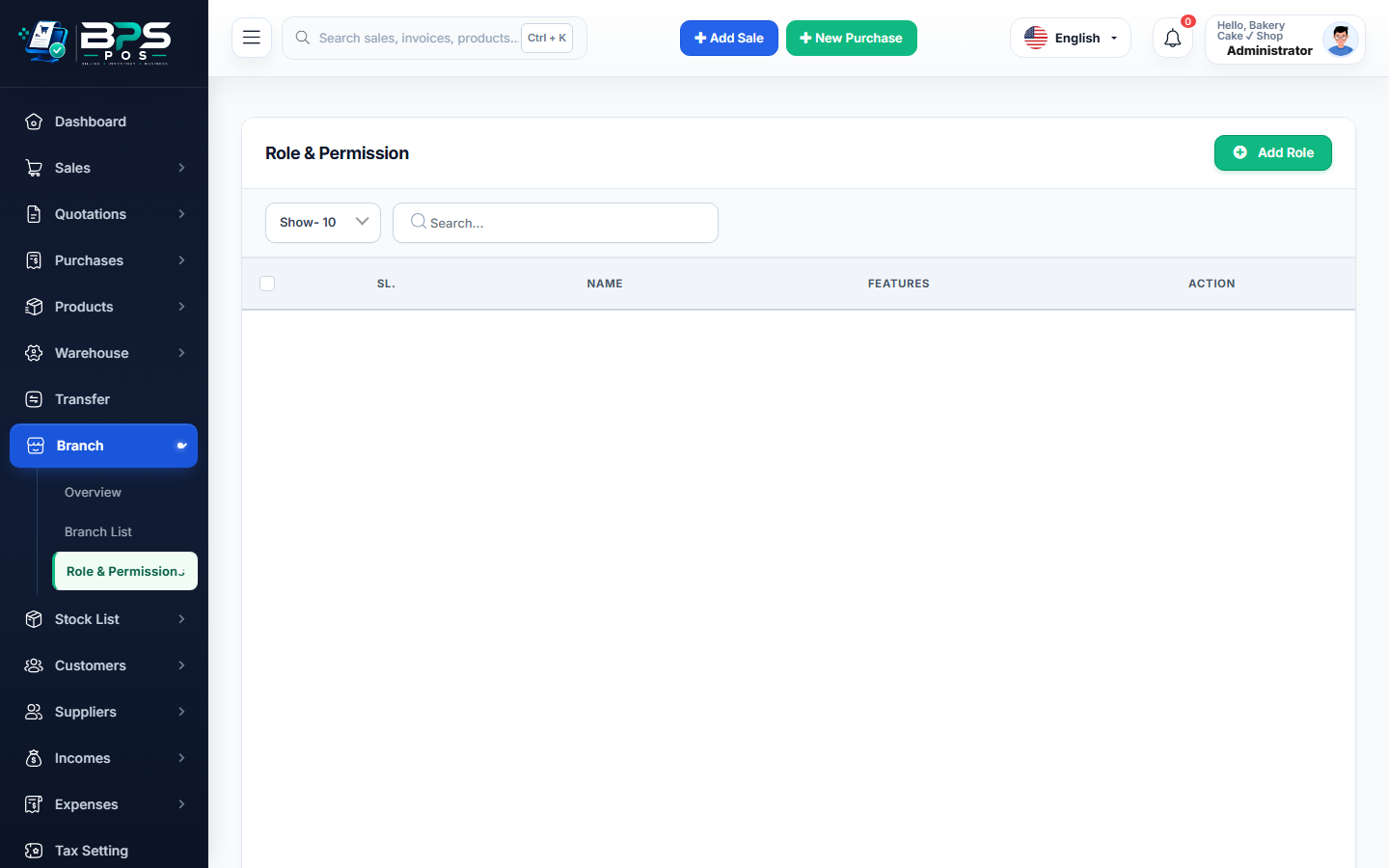
Figure: BPS POS Restrict Staff Access by Branch Location in BPS POS.
Configuring Location-Based User Permissions
Follow these step-by-step instructions inside your BPS POS dashboard to configure and operate this workflow seamlessly:
- Go to Staff → Users → Edit User.
- Locate Assigned Branch / Outlet dropdown.
- Select Single Outlet: Assign specific location (e.g., "Branch 2 - Westside").
- Disable "All Branches Access": Ensure this checkbox is unchecked for non-executive staff.
- Save: When the employee logs in, they only see products, stock, cash registers, and sales from their assigned branch.
BPS POS Pro Tip & Best Practice
Only Corporate Owners, General Managers, and Head Accountants should be granted "All Branches" master visibility.
Why This Workflow Matters for Your Business
Lightning-Fast Operations
Eliminate cashier bottlenecks, reduce customer waiting times, and handle peak rush hours effortlessly.
100% Financial Accuracy
Automate tax math, stock deductions, and ledger balances to eliminate human calculation mistakes.
Frequently Asked Questions (FAQs)
Can a manager temporarily oversee two branches during staff holidays?
Yes, simply select multiple branches in their user profile to grant dual-location access.
Ready to Upgrade Your Retail Billing?
Experience lightning-fast billing, automated stock tracking, and multi-branch control with BPS POS.
Explore Pricing Plans →