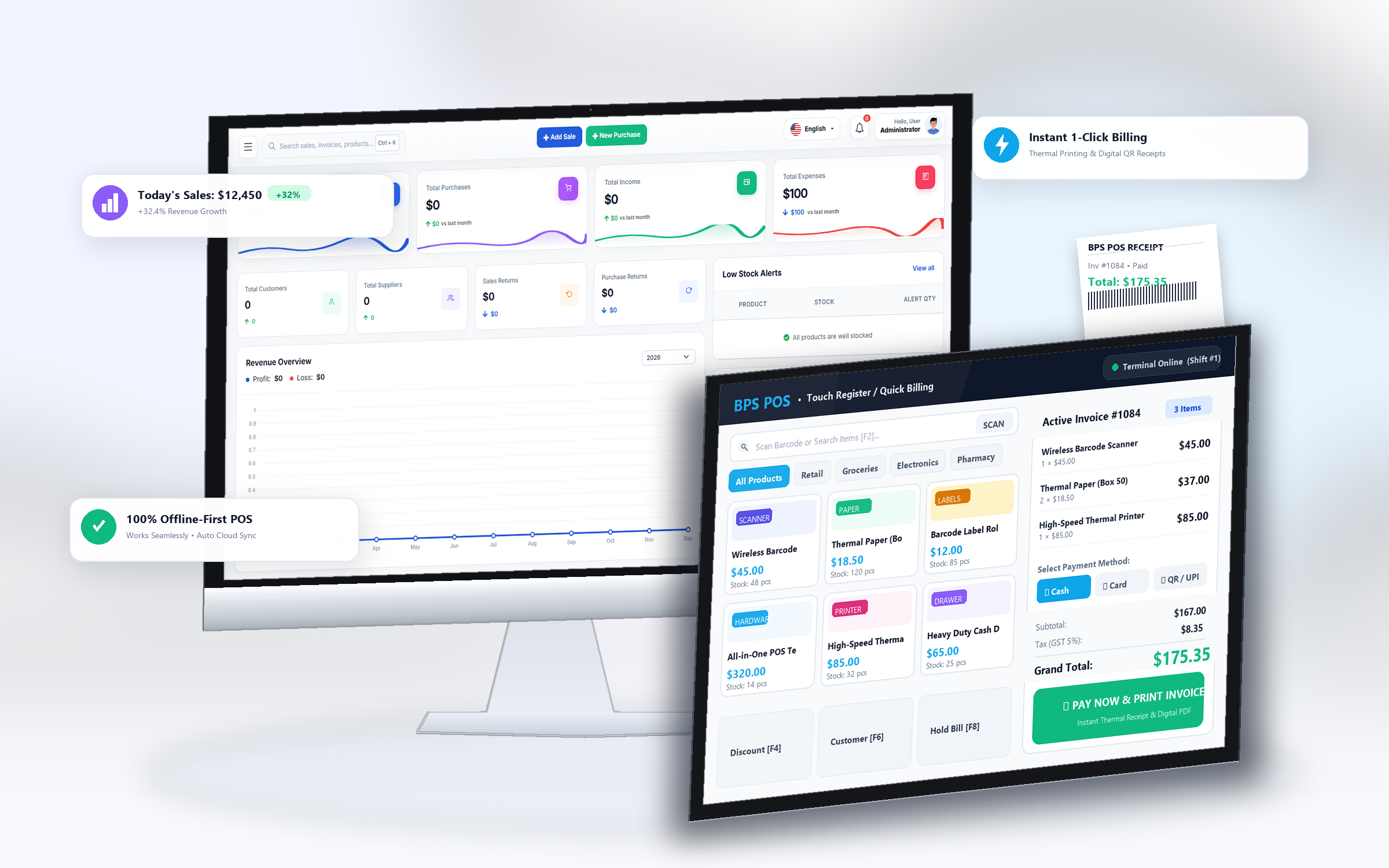
Modern retail requires accepting multiple non-cash payment channels. BPS POS allows cashiers to record Card (Debit/Credit), Bank Wire Transfers, and Mobile Digital Wallets with custom transaction reference numbers.
Figure: BPS POS Digital and Card Payment Methods in BPS POS.
How to Record Digital & Card Payments
Follow these step-by-step instructions inside your BPS POS dashboard to configure and operate this workflow seamlessly:
- Open Payment Window: Click Pay Now on the active cart screen.
- Choose Payment Method: Select Card / POS Machine, Bank Transfer, or Mobile Wallet.
- Select Business Bank Account: Choose the designated company bank account where funds will be credited.
- Enter Transaction / Approval Code: Input the 4-digit card swipe terminal receipt number or mobile transaction ID for audit tracking.
- Finalize Invoice: Hit Complete Sale. Bank ledger balances update automatically.
BPS POS Pro Tip & Best Practice
Always record the card terminal batch authorization code into the note field for smooth month-end bank statement reconciliations.
Why This Workflow Matters for Your Business
Lightning-Fast Operations
Eliminate cashier bottlenecks, reduce customer waiting times, and handle peak rush hours effortlessly.
100% Financial Accuracy
Automate tax math, stock deductions, and ledger balances to eliminate human calculation mistakes.
Frequently Asked Questions (FAQs)
Does BPS POS deduct card processing fees automatically?
You can configure merchant processing fee percentages in Payment Settings to track net bank payouts accurately.
Ready to Upgrade Your Retail Billing?
Experience lightning-fast billing, automated stock tracking, and multi-branch control with BPS POS.
Explore Pricing Plans →