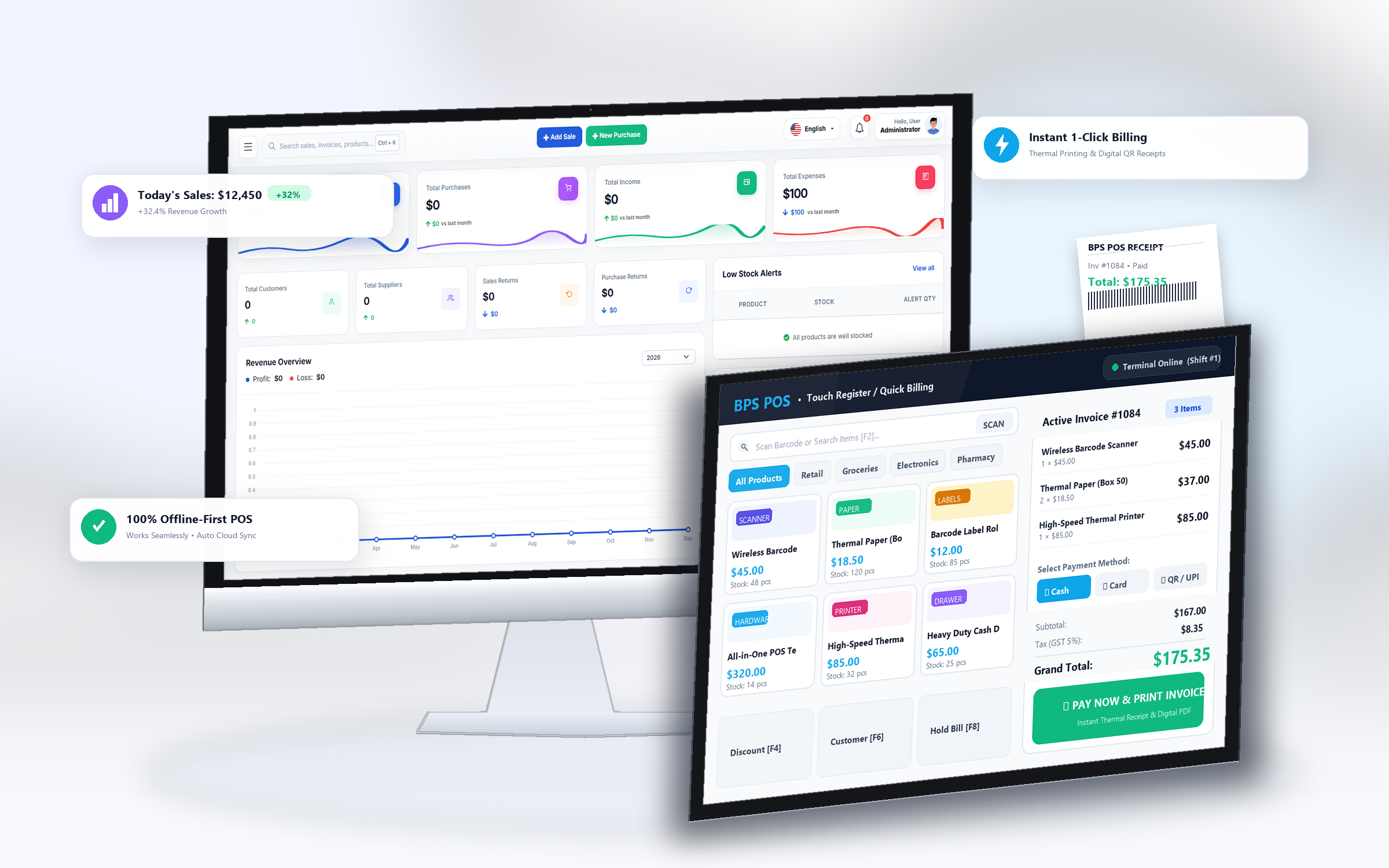
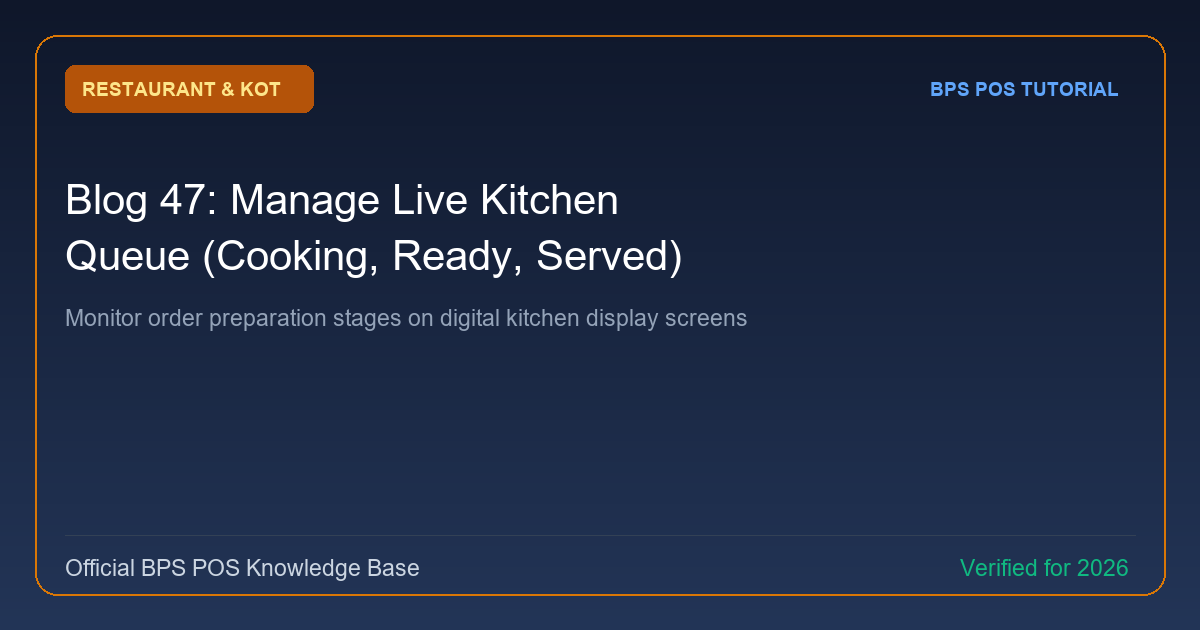
Replace physical paper chits with a paperless Kitchen Display System (KDS). Chefs can view incoming food orders on an Android TV or tablet screen and tap to change statuses from Pending to Cooking and Ready.
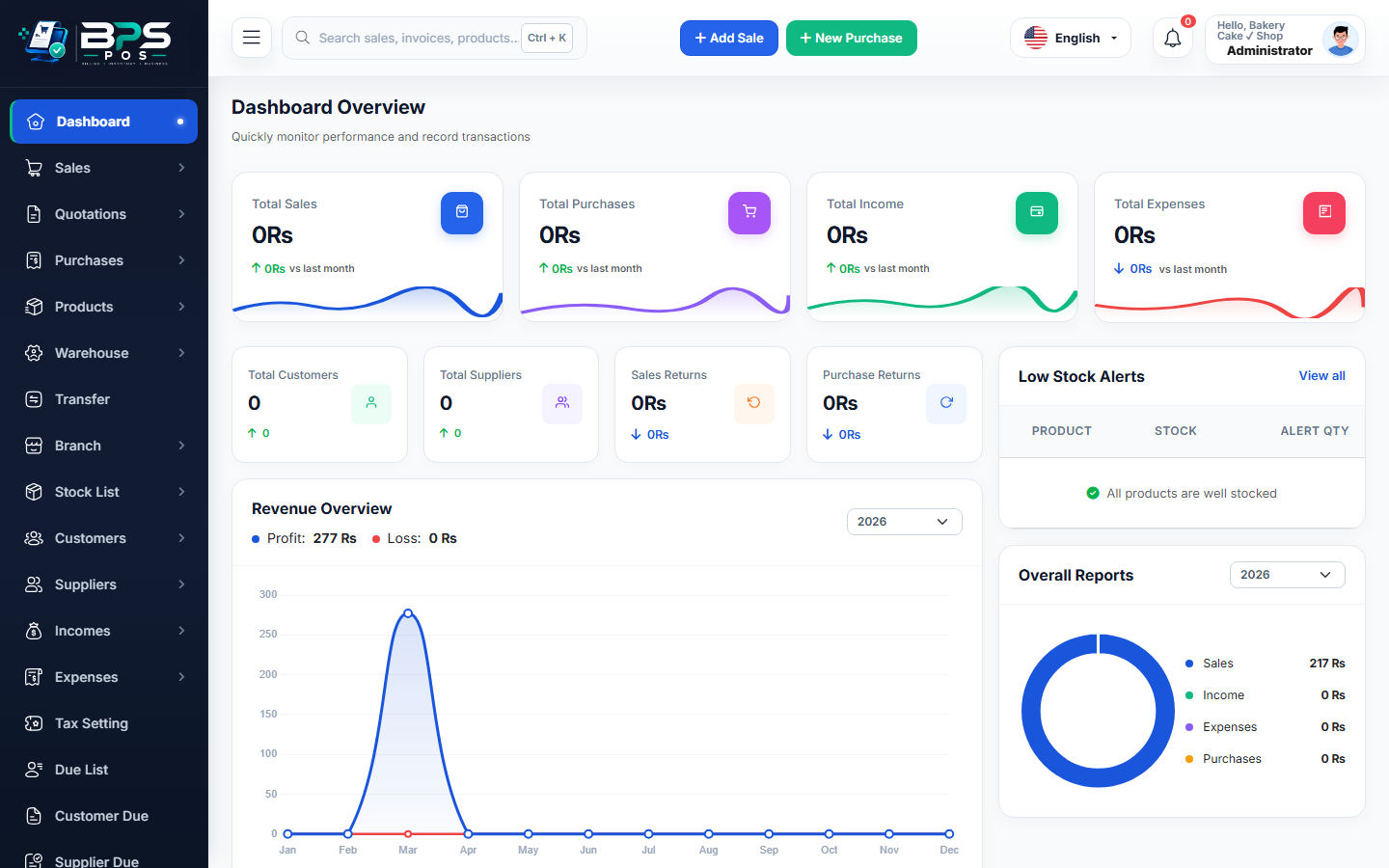
Figure: BPS POS Digital Kitchen Display System KDS in BPS POS.
Using the Digital Kitchen Queue
Follow these step-by-step instructions inside your BPS POS dashboard to configure and operate this workflow seamlessly:
- Launch KDS: Open Restaurant → Kitchen Queue on the kitchen monitor.
- Incoming Orders (Pending): New orders land with glowing badges and preparation timer countdowns.
- Mark as Cooking: Chefs tap the order card when cooking begins to notify floor managers.
- Mark as Ready: When plated, tap "Ready". The service station is alerted to pick up the hot food.
- Mark as Served: Waiters tap "Served" once delivered to the customer's table.
BPS POS Pro Tip & Best Practice
Order cards change color from Green to Yellow and Red if preparation exceeds target cooking time (e.g. 15 minutes), alerting head chefs.
Why This Workflow Matters for Your Business
Lightning-Fast Operations
Eliminate cashier bottlenecks, reduce customer waiting times, and handle peak rush hours effortlessly.
100% Financial Accuracy
Automate tax math, stock deductions, and ledger balances to eliminate human calculation mistakes.
Frequently Asked Questions (FAQs)
Does the KDS screen update in real-time without manual browser refresh?
Yes, live WebSocket / polling triggers instantaneous order card appearances on the kitchen display.
Ready to Upgrade Your Retail Billing?
Experience lightning-fast billing, automated stock tracking, and multi-branch control with BPS POS.
Explore Pricing Plans →