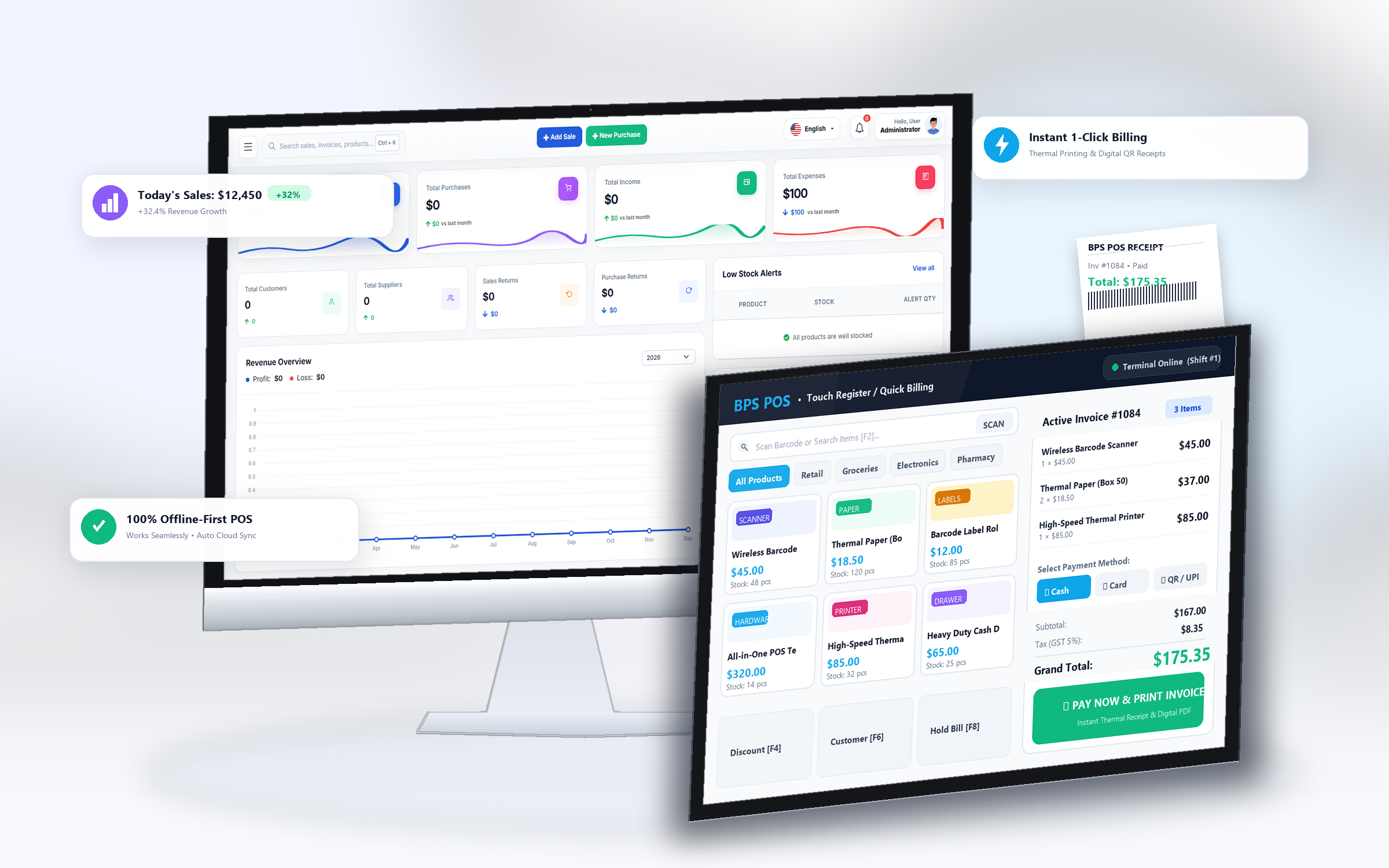
BPS POS is a versatile hybrid platform. With a single toggle in settings, you can switch from retail supermarket mode to a specialized Restaurant & Food Mode complete with table maps, waiters, and kitchen tickets.
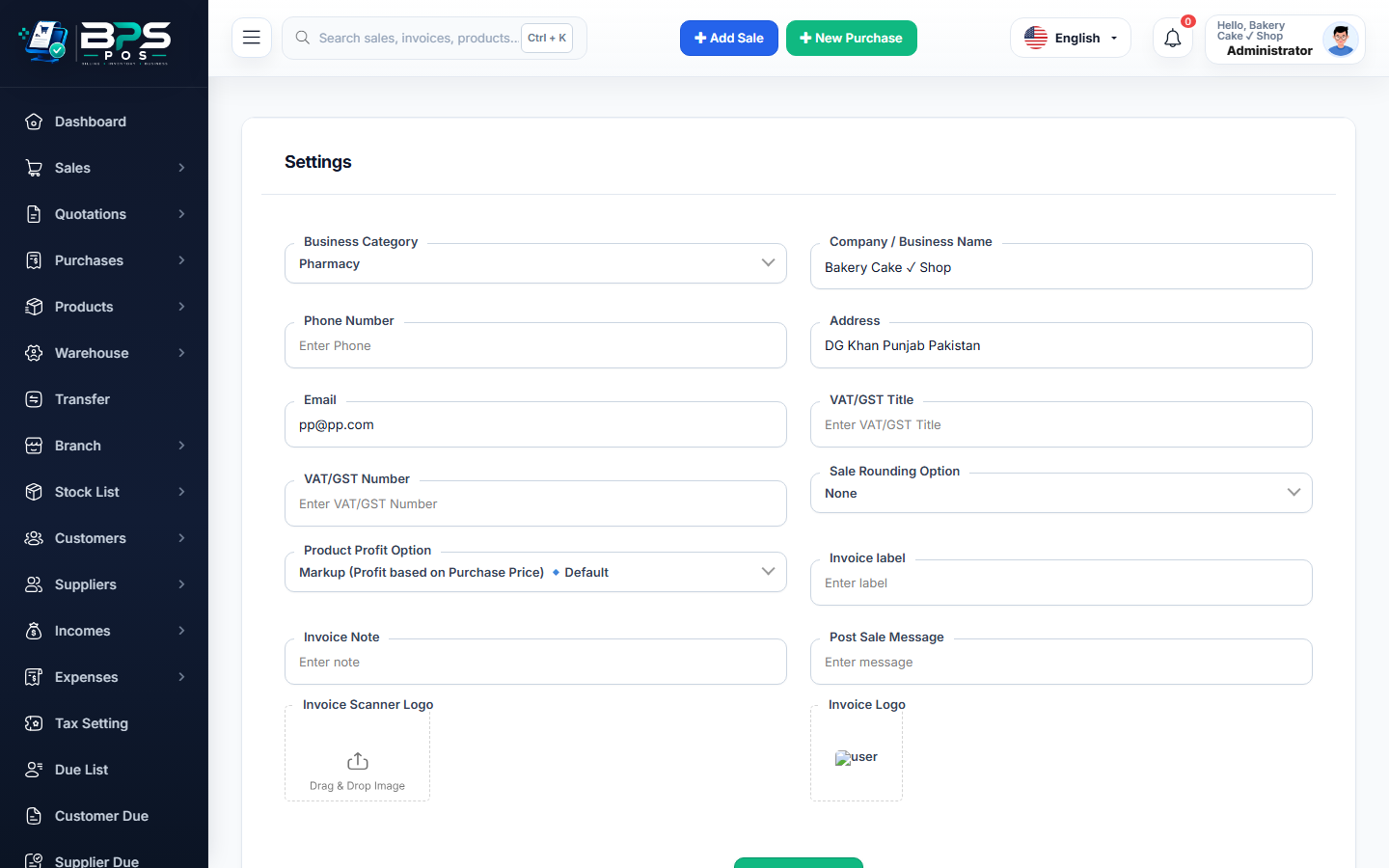
Figure: BPS POS Restaurant Food Mode Configuration in BPS POS.
Activating Restaurant Food Mode
Follow these step-by-step instructions inside your BPS POS dashboard to configure and operate this workflow seamlessly:
- Go to Settings → Business Settings → Module Settings.
- Find Restaurant & Food Features and toggle the switch to Enabled.
- Configure Hospitality Options: Enable Table Management, Waiter Assignment, Kitchen Order Tickets (KOT), and Service Charges.
- Save Settings: The sidebar immediately unlocks new menus for Dining Tables, Kitchen Queue, and Waiters.
BPS POS Pro Tip & Best Practice
Configure your optional Dine-In Service Charge percentage (e.g. 5% or 10%) to automatically apply only to table orders while excluding takeaway.
Why This Workflow Matters for Your Business
Lightning-Fast Operations
Eliminate cashier bottlenecks, reduce customer waiting times, and handle peak rush hours effortlessly.
100% Financial Accuracy
Automate tax math, stock deductions, and ledger balances to eliminate human calculation mistakes.
Frequently Asked Questions (FAQs)
Can I use BPS POS for both Takeaway and Dine-In orders simultaneously?
Yes! The POS header displays quick buttons for Dine-In, Takeaway, and Home Delivery on every order.
Ready to Upgrade Your Retail Billing?
Experience lightning-fast billing, automated stock tracking, and multi-branch control with BPS POS.
Explore Pricing Plans →