Operating a central distribution warehouse optimizes wholesale purchasing power. BPS POS Warehouse Module allows you to configure central hubs where bulk container shipments arrive before being distributed to branch shops.
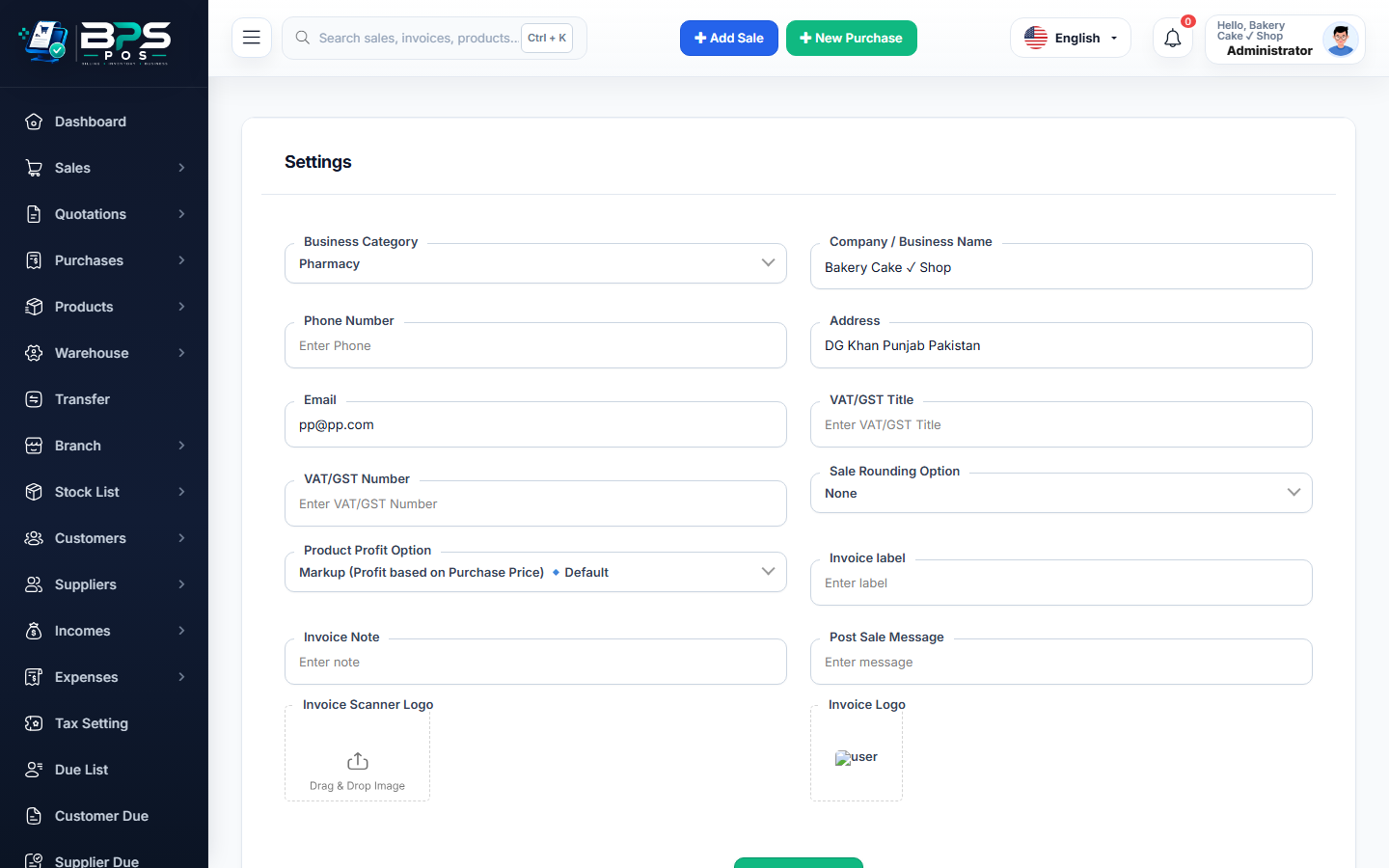
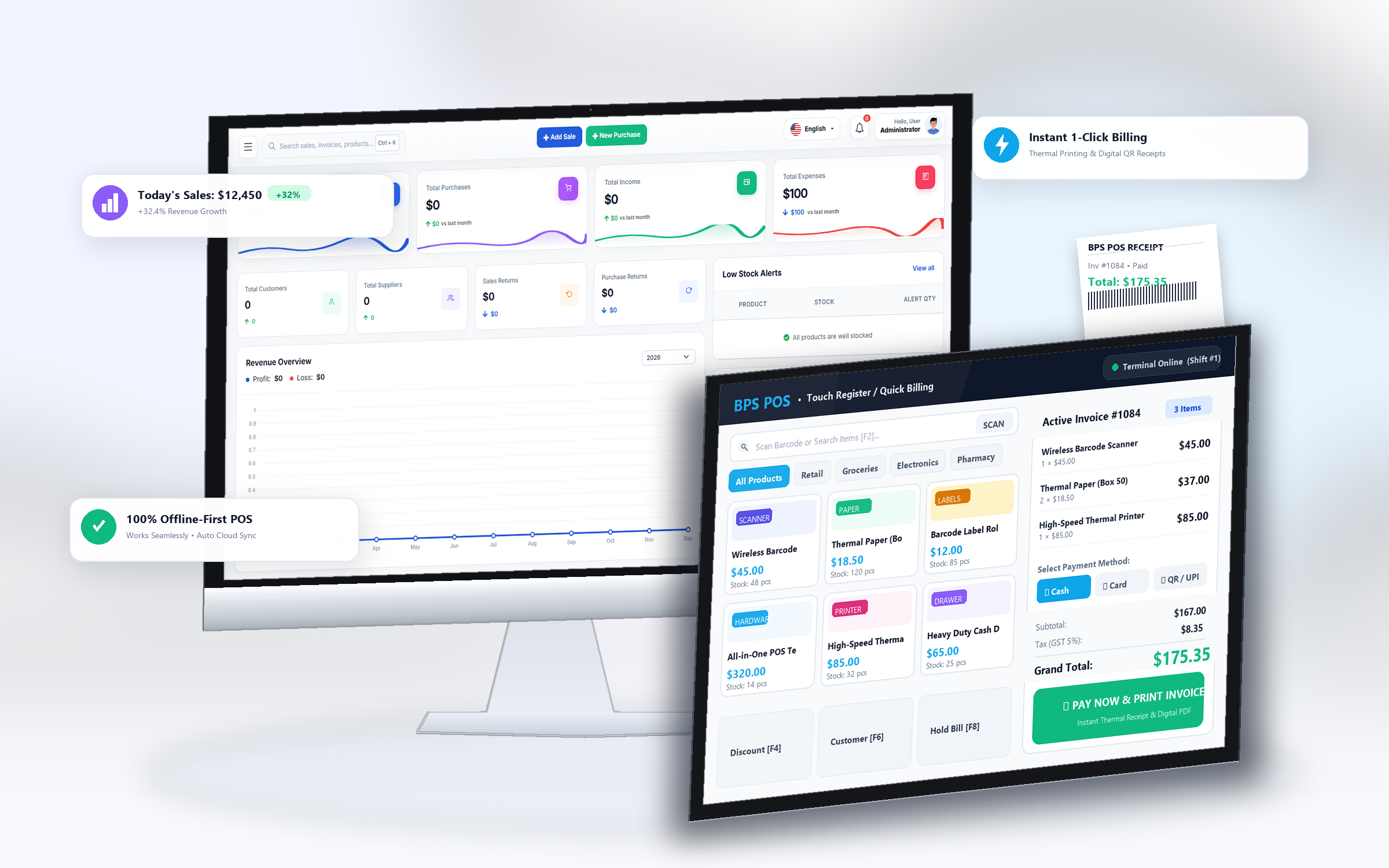
Figure: BPS POS Central Warehouses Management Screen in BPS POS.
Setting Up Central Warehouses
Follow these step-by-step instructions inside your BPS POS dashboard to configure and operate this workflow seamlessly:
- Navigate to Warehouses → Add Warehouse.
- Input Hub Info: Enter Warehouse Name (e.g. Main Logistics Hub, Cold Storage Warehouse), Code, Location, and Supervisor.
- Designate Inward Point: Set this warehouse as the default destination for large supplier purchase container shipments.
- Define Storage Zones & Racks: Set up warehouse bin, aisle, and rack coordinates for efficient pallet storage.
- Save: The warehouse is ready to receive supplier shipments and process outbound store transfer orders.
BPS POS Pro Tip & Best Practice
Receiving stock into a central warehouse allows you to inspect product quality before distributing items to retail counters.
Why This Workflow Matters for Your Business
Lightning-Fast Operations
Eliminate cashier bottlenecks, reduce customer waiting times, and handle peak rush hours effortlessly.
100% Financial Accuracy
Automate tax math, stock deductions, and ledger balances to eliminate human calculation mistakes.
Frequently Asked Questions (FAQs)
Can customers make direct retail purchases from a central warehouse?
You can toggle "Allow Direct POS Billing" on or off per warehouse location.
Ready to Upgrade Your Retail Billing?
Experience lightning-fast billing, automated stock tracking, and multi-branch control with BPS POS.
Explore Pricing Plans →