BPS POS Logo
Home / Blog / Details

How to Create and Assign Product Brands in BPS POS

12 Apr, 2026 . 1 min read
How to Create and Assign Product Brands in BPS POS
12 Apr, 2026 0 Comments Super Admin
Brand Management

Assigning brands (e.g., Nestle, Unilever, Samsung, GSK) to products in BPS POS allows merchants to analyze brand-wise sales volumes, manage manufacturer warranties, and filter inventory quickly on the POS checkout screen.
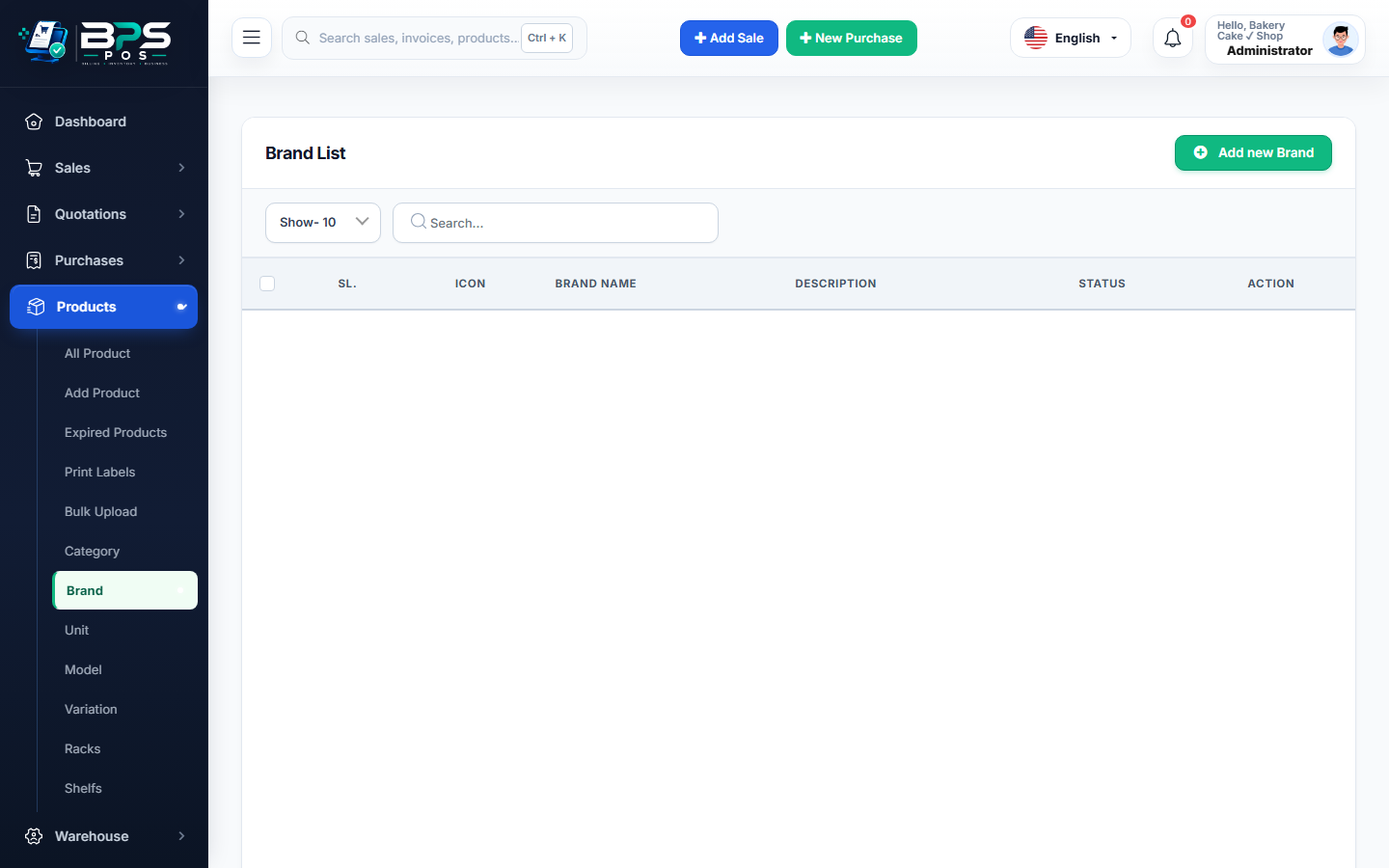
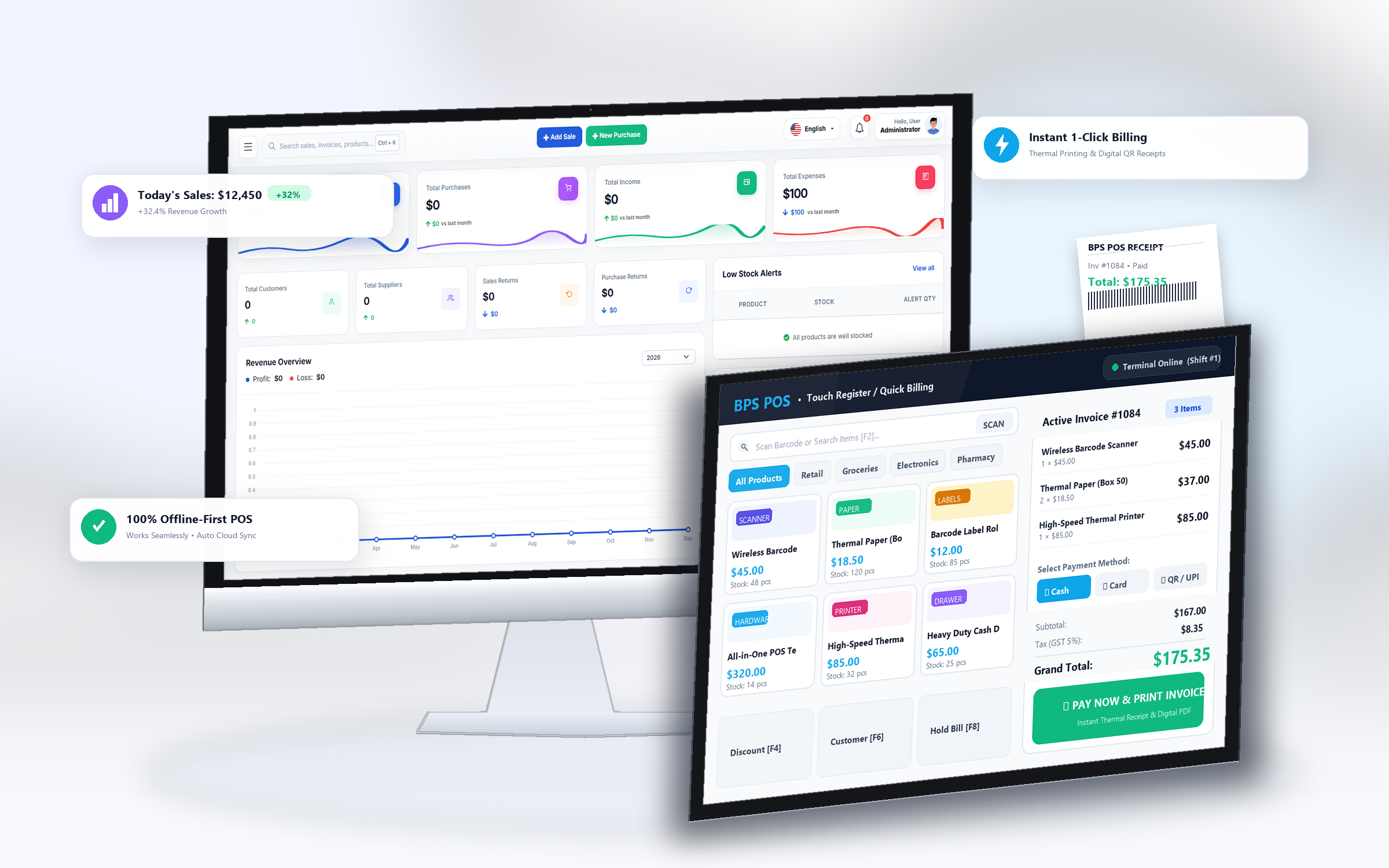
BPS POS Product Brands Management Interface

Figure 1: BPS POS Brands Directory and status control.

Steps to Add a Brand

  1. Navigate to Products → Brand.
  2. Click Add Brand and enter the Brand Name and optional logo.
  3. Assign this brand when creating or editing any product.
0 Comments

No comments yet. Be the first to share your thoughts.

Leave a Comment

Your email address will not be published.

Start selling smarter today

Join 10,000+ shops running BPS POS every day. No credit card required.