Real-Time Expiry Management
For pharmacies, cosmetic shops, and grocery stores, selling expired goods leads to regulatory penalties and financial loss. BPS POS Expiry Tracking allows batch-wise expiry date recording during purchase inward, flags near-expiry products with color-coded badges, and blocks expired items from checkout.
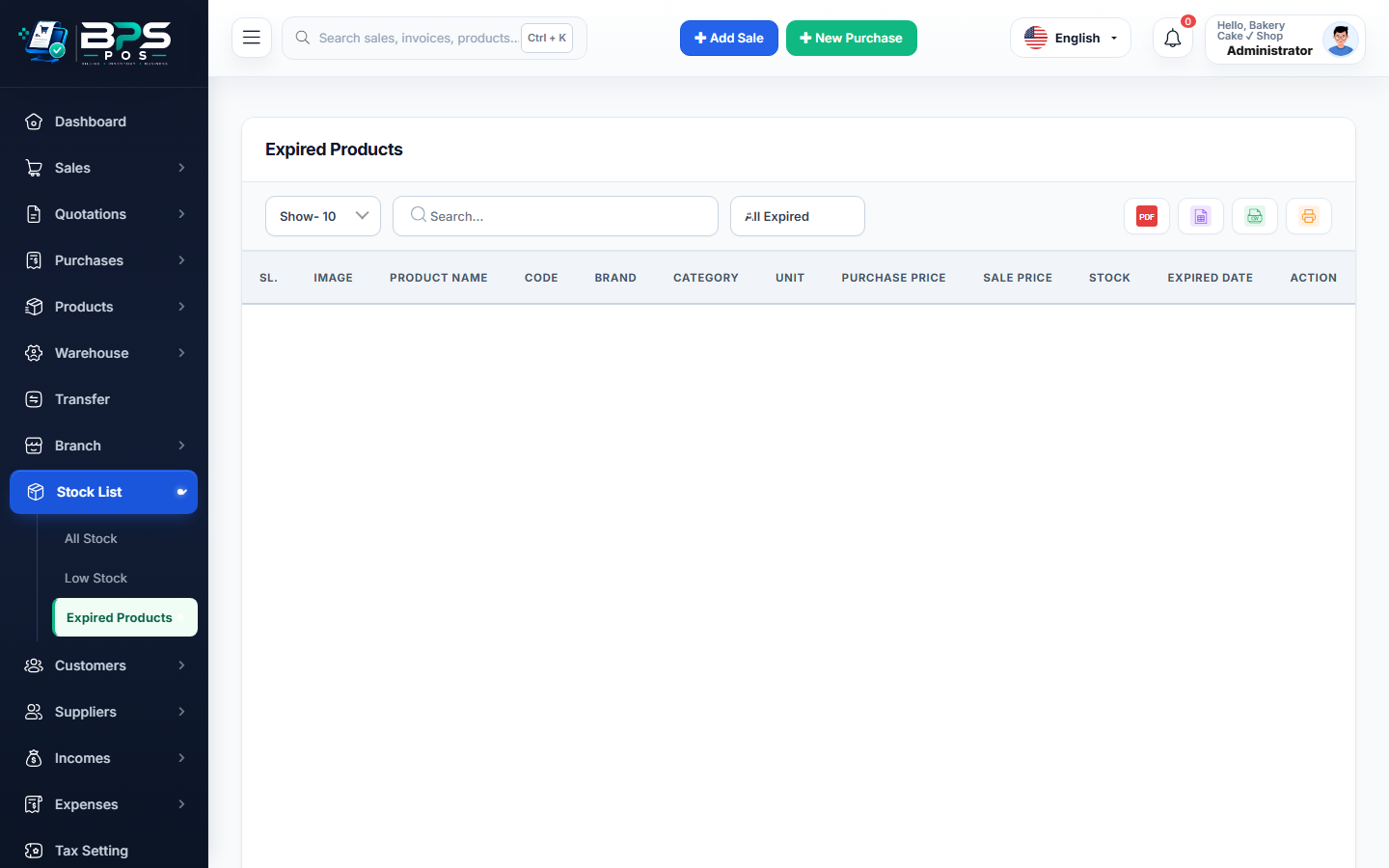
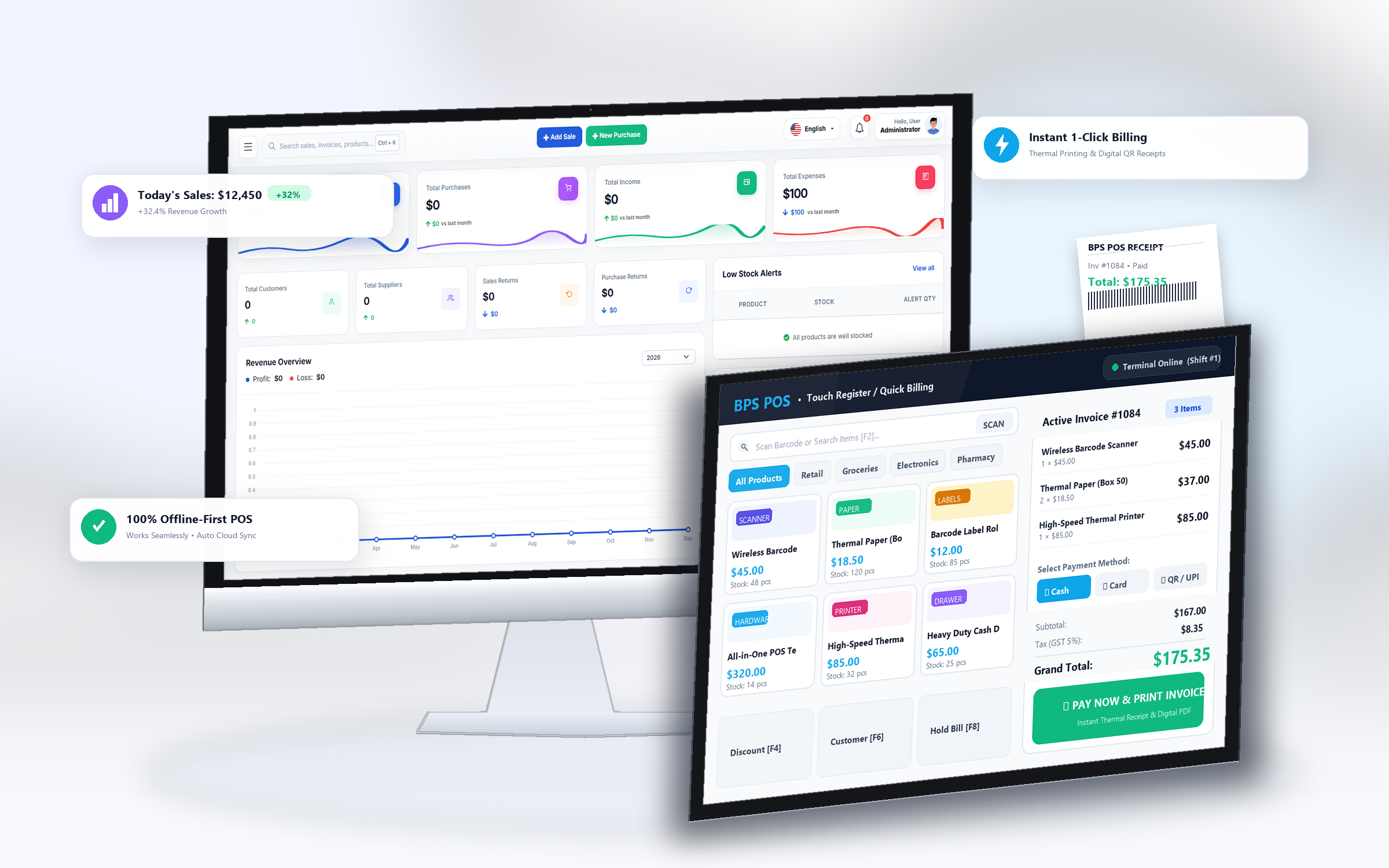
Figure 1: BPS POS Expired and near-expiry inventory control screen.
Managing Expiry Dates in BPS POS
- Record the Expiry Date & Batch Number during purchase stock inward.
- Navigate to Products → Expired Products to view items expiring within 30, 60, or 90 days.
- Initiate a Purchase Return to send near-expiry items back to vendors before expiration.