When clients ask for an account breakdown, a clear statement resolves all questions. BPS POS Customer Ledger generates a chronological running balance statement showing every invoice, payment, and return.
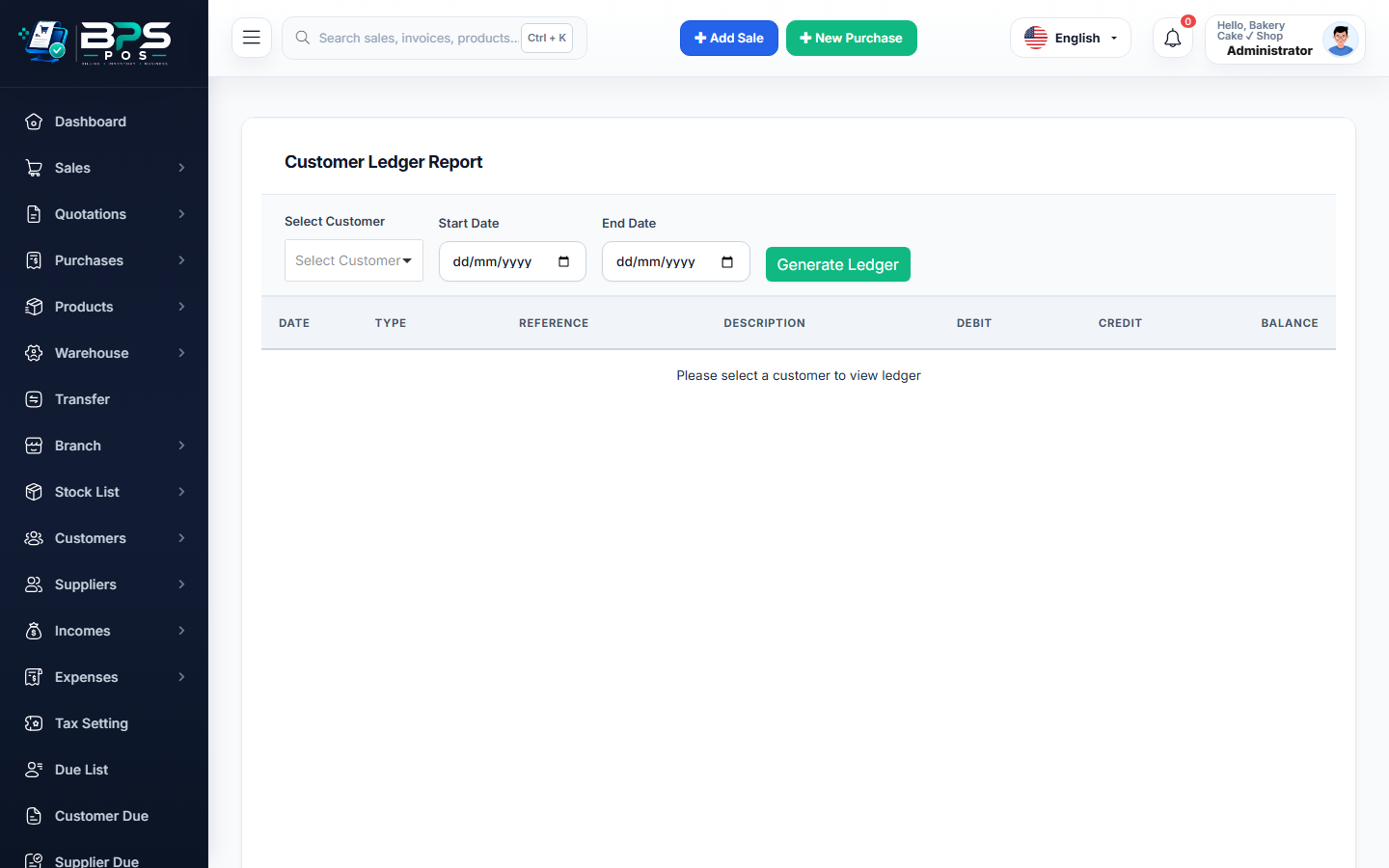
Figure: BPS POS Customer Account Ledger Statement in BPS POS.
Generating a Customer Statement
Follow these step-by-step instructions inside your BPS POS dashboard to configure and operate this workflow seamlessly:
- Go to Reports → Customer Ledger Reports.
- Select Customer & Date Range: Choose specific date span (e.g., Last Month or Financial Quarter).
- Review Chronological Ledger: View Opening Balance, Debit (Sales Bills), Credit (Payments Received / Returns), and Running Balance.
- Inspect Transaction Links: Click any voucher ID to view the original sales invoice or payment receipt.
- Export to PDF / Excel: Print or share the branded ledger statement directly with the customer.
BPS POS Pro Tip & Best Practice
The PDF ledger includes your official business header, tax number, and client billing address for accounting compliance.
Why This Workflow Matters for Your Business
Lightning-Fast Operations
Eliminate cashier bottlenecks, reduce customer waiting times, and handle peak rush hours effortlessly.
100% Financial Accuracy
Automate tax math, stock deductions, and ledger balances to eliminate human calculation mistakes.
Frequently Asked Questions (FAQs)
Can I email monthly ledger statements to all credit customers in bulk?
Yes, from the Customer Ledger Suite, click "Bulk Email Monthly Statements".
Ready to Upgrade Your Retail Billing?
Experience lightning-fast billing, automated stock tracking, and multi-branch control with BPS POS.
Explore Pricing Plans →