Accountants and business owners often need raw transaction data for external spreadsheets. BPS POS features instant 1-click exports to Microsoft Excel (.xlsx), CSV, and formatted PDF.
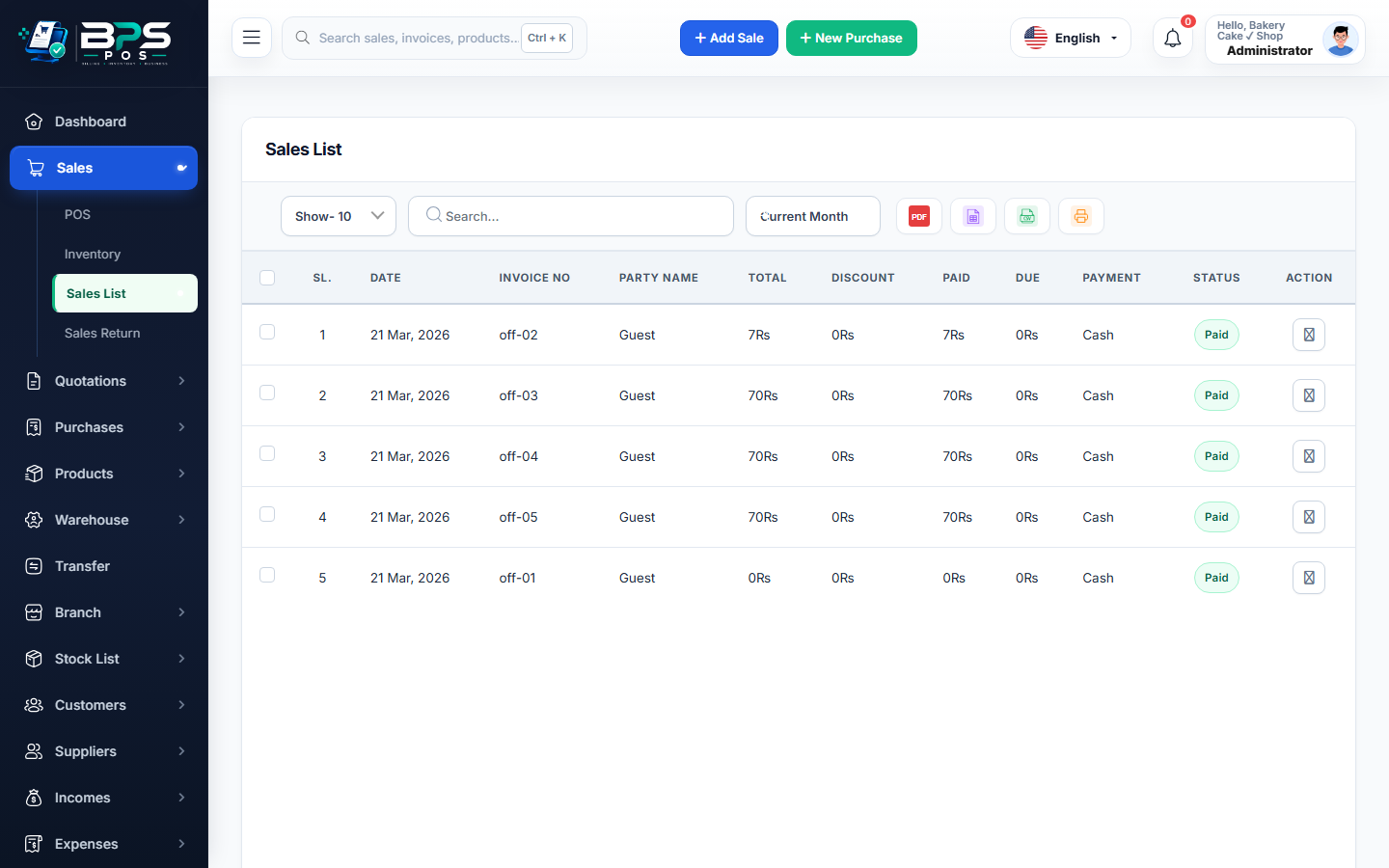
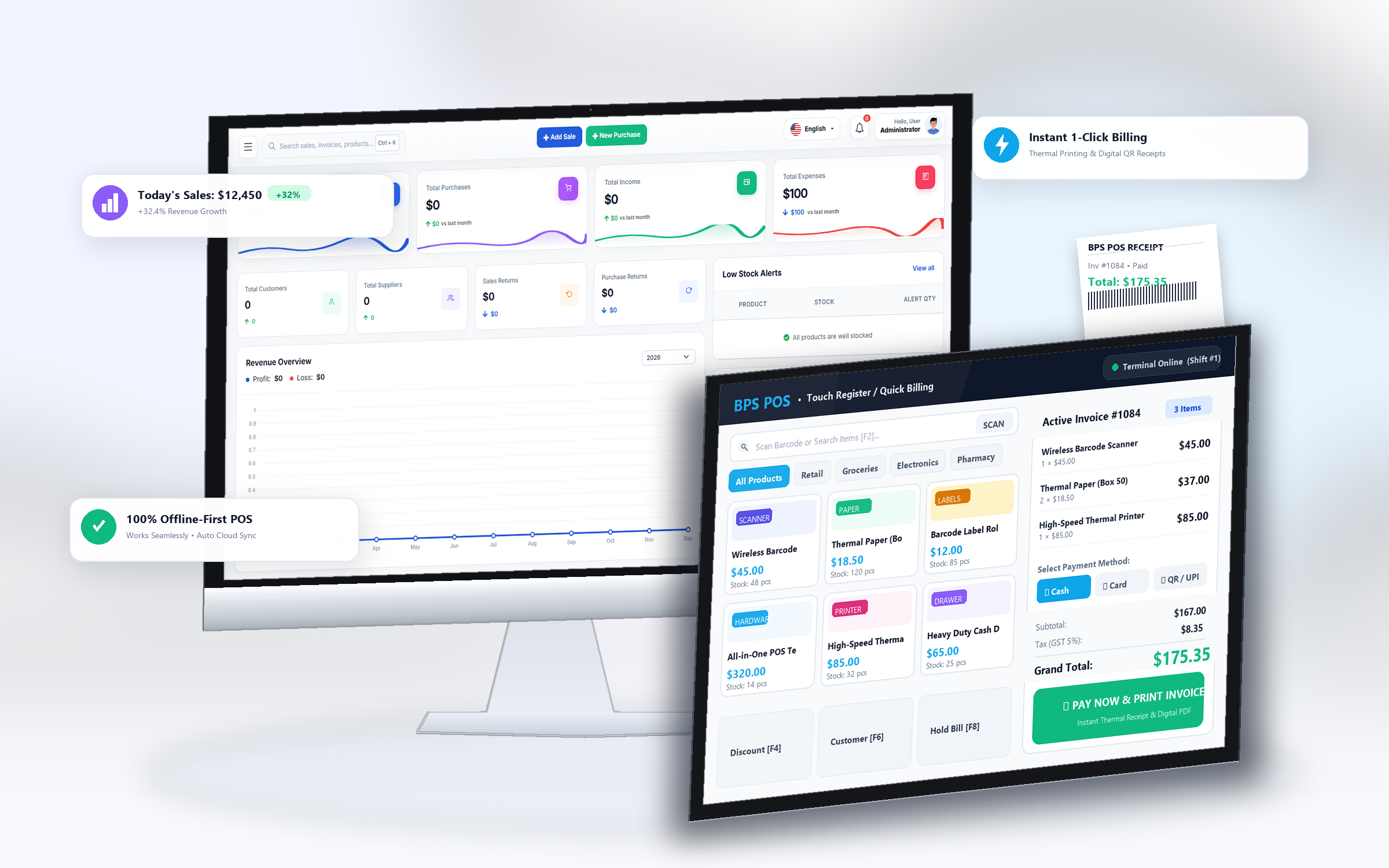
Figure: BPS POS Export Sales List to Excel CSV PDF in BPS POS.
Exporting Sales Records
Follow these step-by-step instructions inside your BPS POS dashboard to configure and operate this workflow seamlessly:
- Navigate to Sales → Sales List.
- Apply any required filters (such as specific Month, Outlet, or Cashier).
- Click the Export button in the top right table header.
- Select your desired format: Excel (.xlsx), CSV, or PDF.
- The file downloads instantly with organized columns for Invoice ID, Date, Customer, Subtotal, Discount, VAT, Net Total, and Payment Method.
BPS POS Pro Tip & Best Practice
Use the Excel export to create custom pivot tables and monthly sales comparison charts in Microsoft Excel or Google Sheets.
Why This Workflow Matters for Your Business
Lightning-Fast Operations
Eliminate cashier bottlenecks, reduce customer waiting times, and handle peak rush hours effortlessly.
100% Financial Accuracy
Automate tax math, stock deductions, and ledger balances to eliminate human calculation mistakes.
Frequently Asked Questions (FAQs)
Is there a limit on how many sales rows can be exported?
No. BPS POS handles large exports with chunked streaming to prevent memory timeouts.
Ready to Upgrade Your Retail Billing?
Experience lightning-fast billing, automated stock tracking, and multi-branch control with BPS POS.
Explore Pricing Plans →