Quick Answer / Product Setup
To add a product in BPS POS, navigate to Products → Add Product. Enter the Product Name, Barcode/SKU, Category, Brand, Measurement Unit, set your Purchase Price, Selling Price, and Tax Rate, specify your Opening Stock and Low Stock Alert Quantity, and click Save Product. Your item is instantly ready for barcode scanning and POS billing.
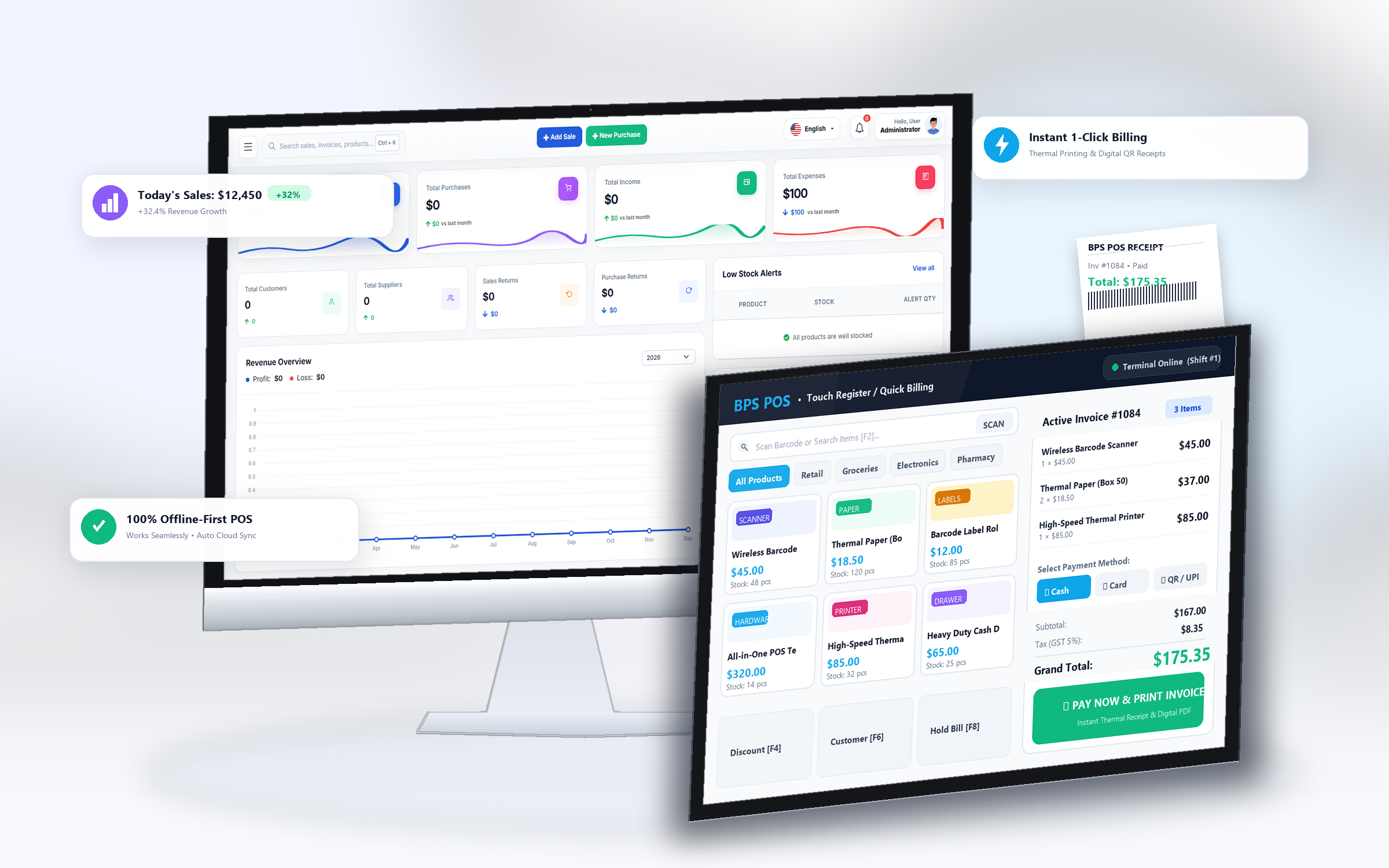
Accurate product cataloging is the backbone of fast point-of-sale checkout and real-time inventory management. BPS POS provides an intuitive interface that accommodates simple items, variable sizes/colors, and combo deals.
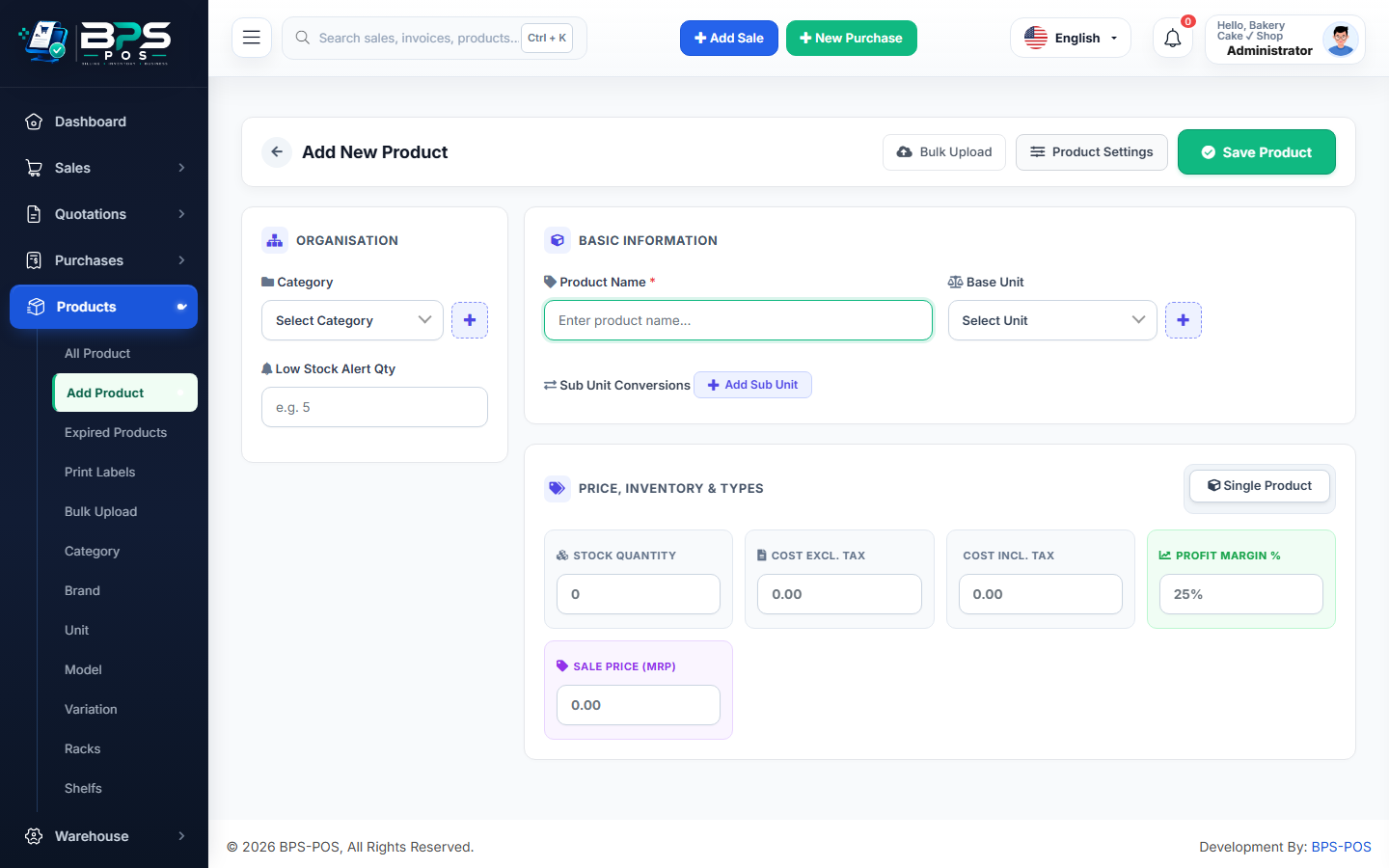
Figure 1: BPS POS Product Configuration & Pricing setup screen.
Key Steps to Create a Product
- Item Name & Barcode: Enter the descriptive name. Scan existing packaging barcode with a USB scanner or let BPS POS auto-generate a unique Code-128 barcode.
- Category & Brand: Categorize your item (e.g. Beverages → Soft Drinks) for fast cashier touch-grid selection.
- Measurement Unit: Select default unit (Pcs, Kg, Box, Liter).
- Pricing & Margins: Enter Purchase Price (Cost) and Retail Selling Price. The system auto-calculates your exact profit margin %.
- Stock & Expiry: Enter shelf quantity and expiration date if tracking perishable goods.