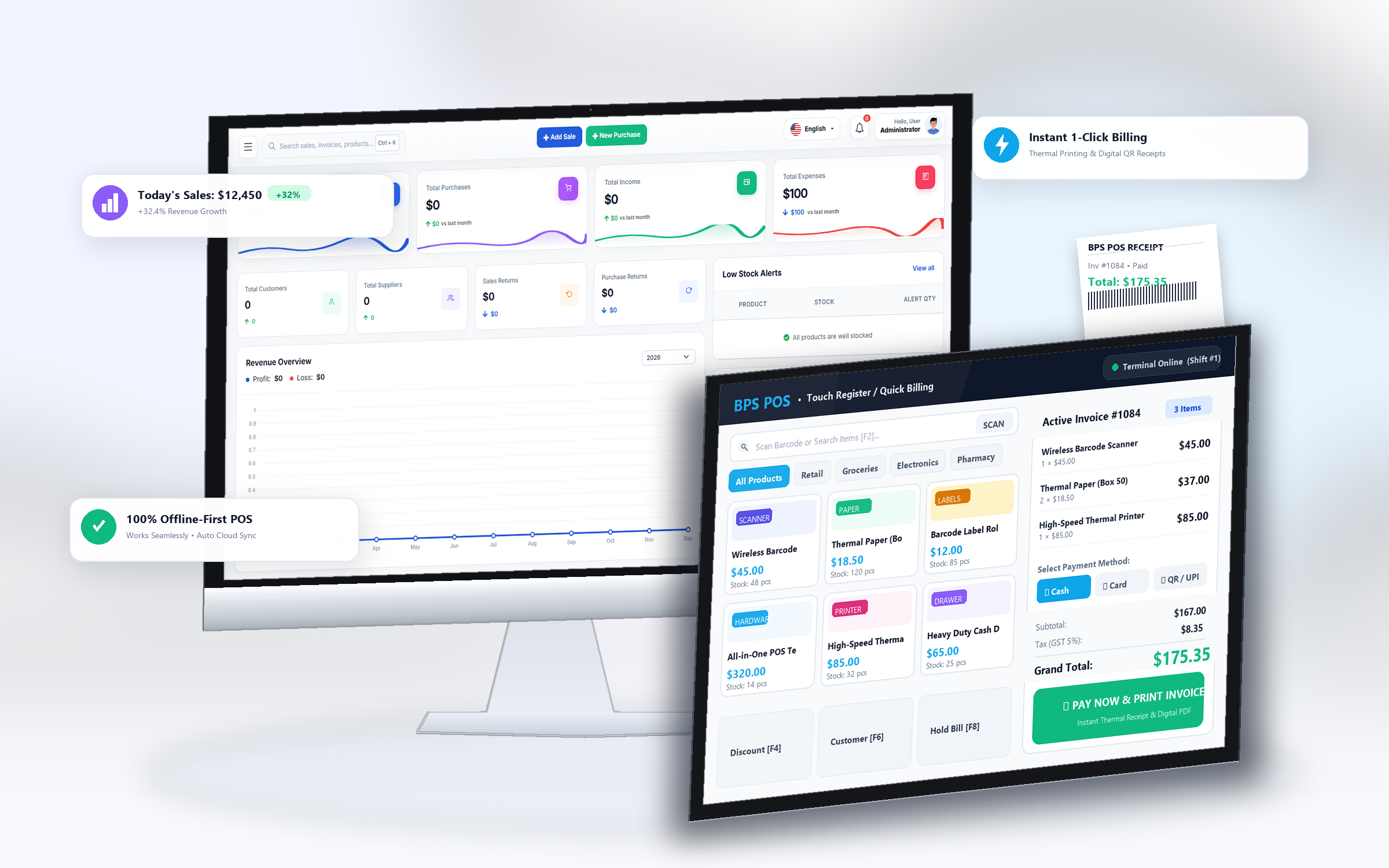
Never disrupt a live checkout queue to register a new customer. BPS POS features a modal popup that registers new customer profiles in 5 seconds without clearing the active shopping cart.
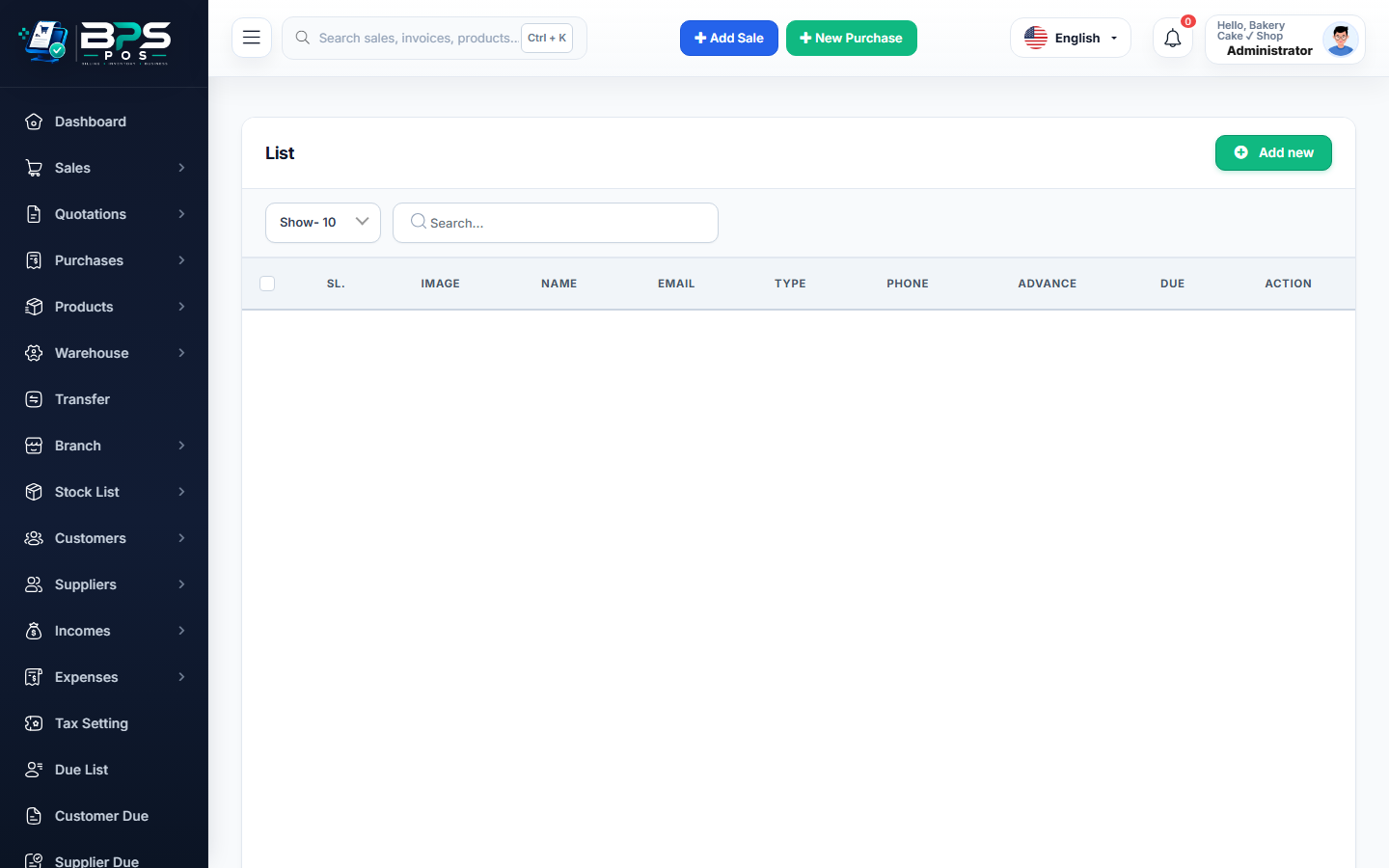
Figure: BPS POS Quick Add Customer Popup on Billing Screen in BPS POS.
Quick Customer Registration Flow
Follow these step-by-step instructions inside your BPS POS dashboard to configure and operate this workflow seamlessly:
- Click the Quick Add (+) Button: Next to the Customer Search box on the POS header, click the blue icon.
- Enter Essential Info: Provide the customer’s Name and Mobile Phone Number (Email and Address are optional for faster speed).
- Set Credit Limit (Optional): If the customer is eligible for credit sales (Udhar), specify their maximum credit limit.
- Save & Auto-Select: Click Save Customer. The new customer is automatically assigned to the current active cart.
BPS POS Pro Tip & Best Practice
Collecting mobile numbers enables automated WhatsApp and SMS invoice delivery right upon payment completion.
Why This Workflow Matters for Your Business
Lightning-Fast Operations
Eliminate cashier bottlenecks, reduce customer waiting times, and handle peak rush hours effortlessly.
100% Financial Accuracy
Automate tax math, stock deductions, and ledger balances to eliminate human calculation mistakes.
Frequently Asked Questions (FAQs)
Can I merge duplicate customer records later?
Yes, from <em>Parties → Customers</em>, administrators can edit, merge, or adjust customer accounts at any time.
Ready to Upgrade Your Retail Billing?
Experience lightning-fast billing, automated stock tracking, and multi-branch control with BPS POS.
Explore Pricing Plans →