Business owners need instant insights into each branch without logging into multiple accounts. BPS POS Outlet Switcher lets administrators switch between branch views in 1 click or analyze all branches side-by-side.
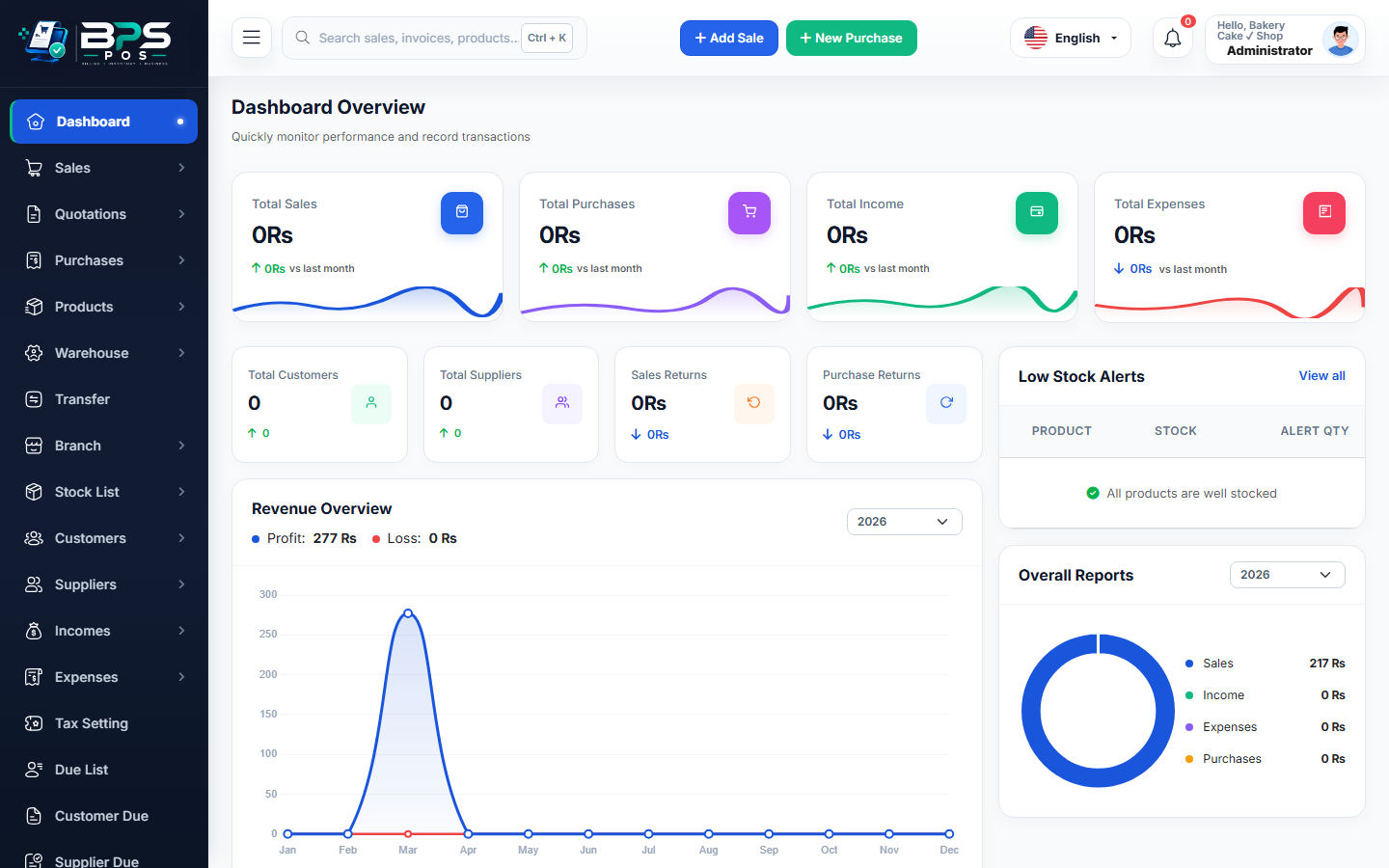
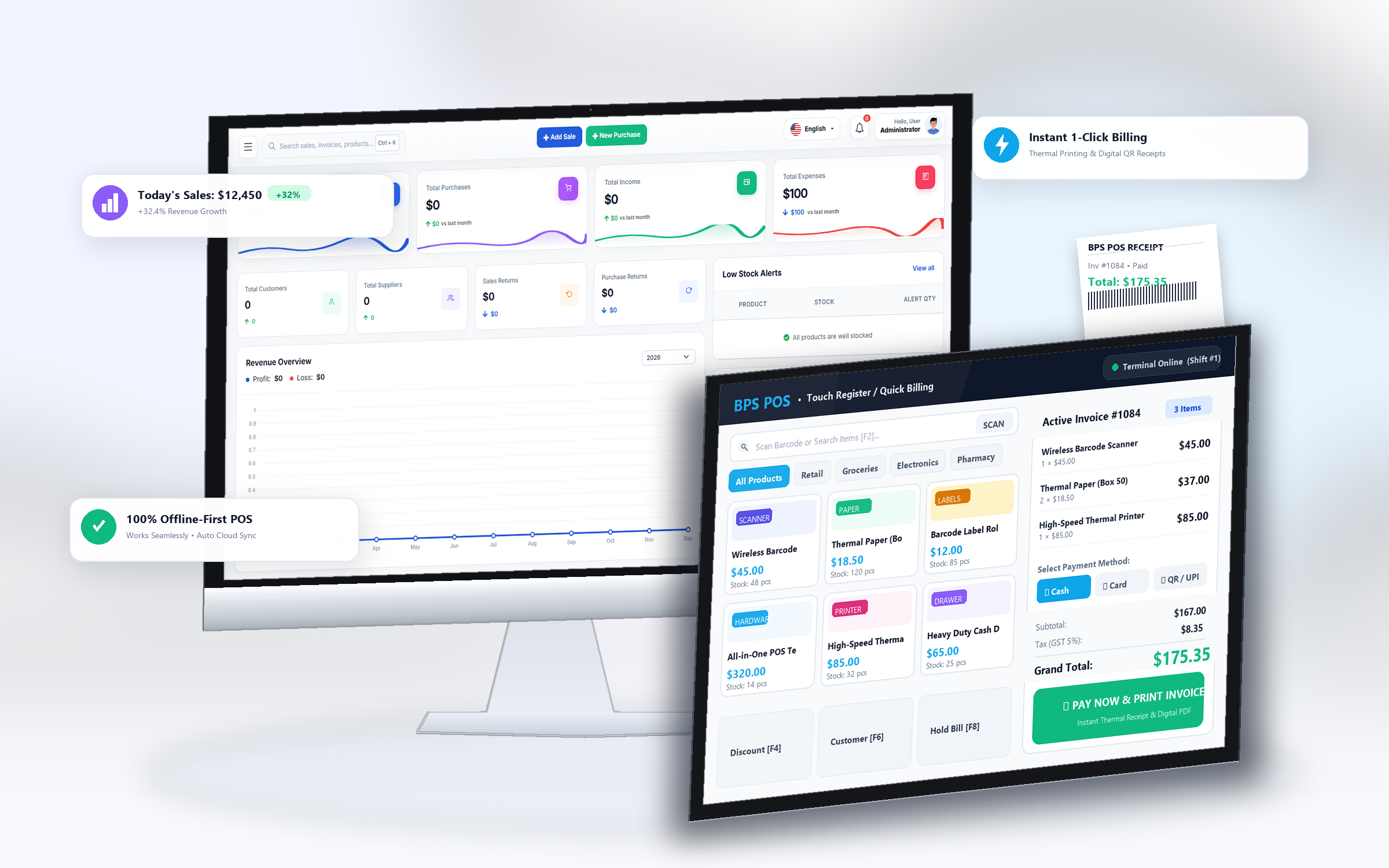
Figure: BPS POS Quick Outlet Switcher and Branch Dashboard in BPS POS.
Navigating Between Multiple Outlets
Follow these step-by-step instructions inside your BPS POS dashboard to configure and operate this workflow seamlessly:
- Locate Top Branch Switcher: Look at the top navigation bar next to your profile avatar.
- Click Dropdown: View the list of all active retail branches.
- Select Target Branch: Choose "Mall Outlet" to filter the dashboard, stock counts, sales lists, and cash drawers to that location.
- Select "All Outlets (Consolidated)": View aggregate corporate sales totals, combined inventory valuation, and group net profit.
- Instant Switching: No need to log out and log back in; data filters instantaneously.
BPS POS Pro Tip & Best Practice
Bookmark branch-specific dashboard URLs for rapid mobile monitoring when traveling between physical store locations.
Why This Workflow Matters for Your Business
Lightning-Fast Operations
Eliminate cashier bottlenecks, reduce customer waiting times, and handle peak rush hours effortlessly.
100% Financial Accuracy
Automate tax math, stock deductions, and ledger balances to eliminate human calculation mistakes.
Frequently Asked Questions (FAQs)
Can a branch cashier switch into other branches?
No. Branch cashiers are strictly locked to their assigned outlet by security permissions.
Ready to Upgrade Your Retail Billing?
Experience lightning-fast billing, automated stock tracking, and multi-branch control with BPS POS.
Explore Pricing Plans →