Units & Multi-Unit Conversions
BPS POS supports standard and decimal measurement units including Pieces (Pcs), Kilograms (Kg), Grams (g), Liters (L), Meters (m), and Boxes/Cartons. This ensures accurate decimal billing for weigh-scale items (e.g. 1.25 Kg fruits) and discrete quantities.
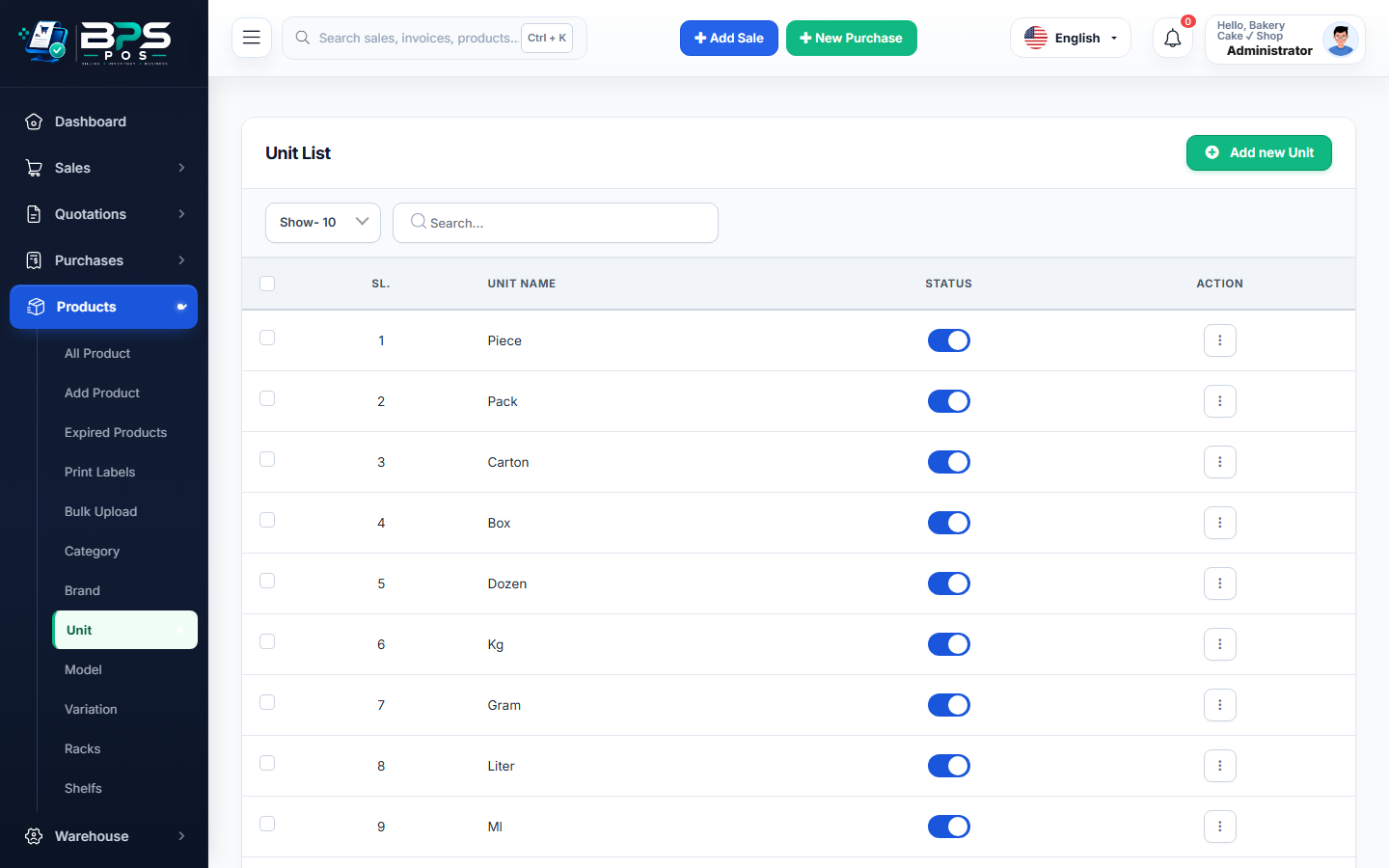
Figure 1: BPS POS Measurement Units Management panel.
Configuring Units in BPS POS
- Go to Products → Unit.
- Click Add Unit, type the Unit Title (e.g. Pieces) and Short Code (e.g. pcs).
- Save to enable this unit across all product forms and purchase invoices.