Efficient table management maximizes dining turnover. BPS POS Table Management allows managers to configure multiple dining zones, assign seating capacities, and monitor live table occupancy (Available vs Occupied).
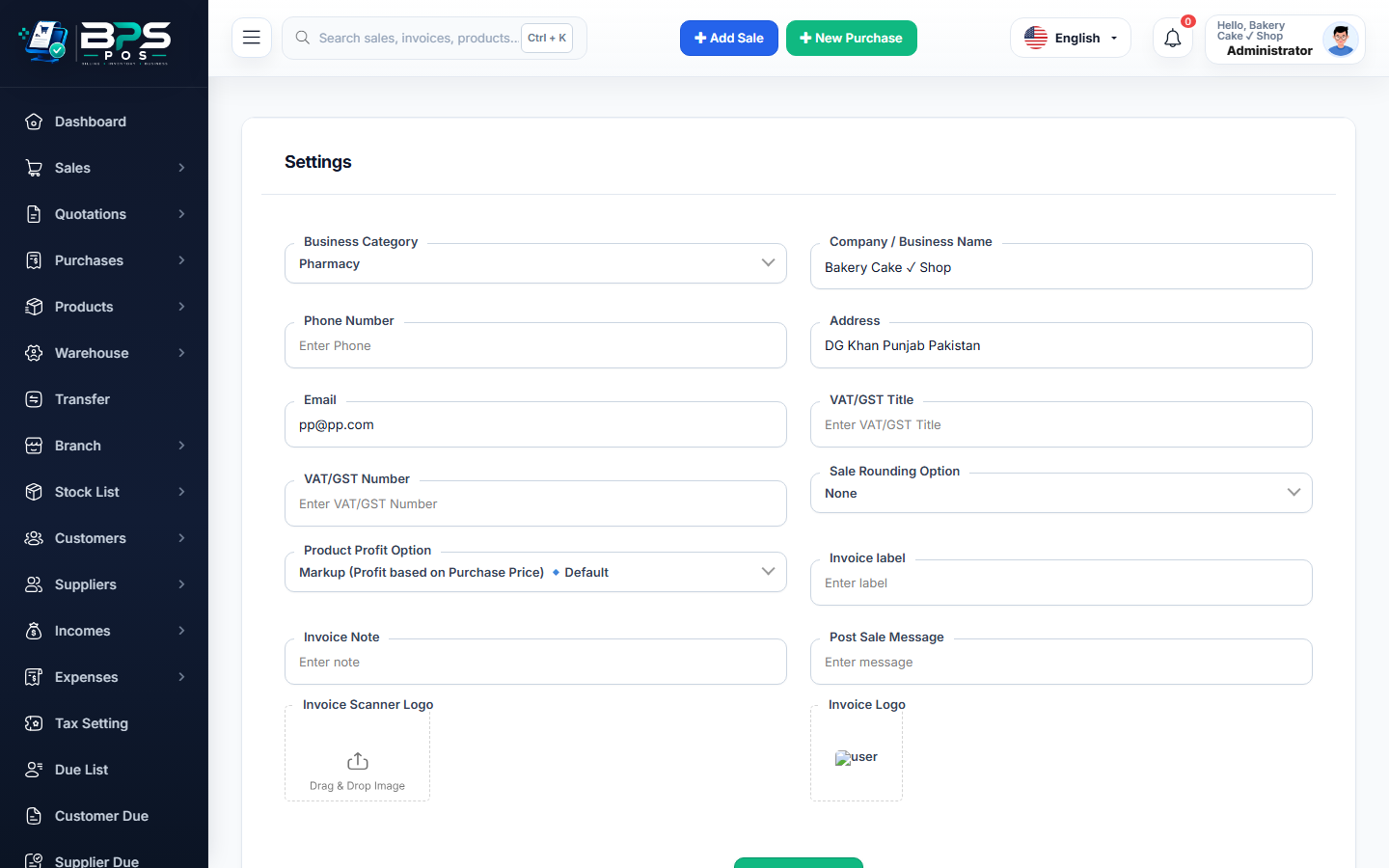
Figure: BPS POS Dining Table and Floor Layout Management in BPS POS.
Creating Restaurant Tables and Floor Plans
Follow these step-by-step instructions inside your BPS POS dashboard to configure and operate this workflow seamlessly:
- Navigate to Restaurant → Tables and click Add Table.
- Specify Table Number & Name: E.g., Table T-01, Rooftop RT-04, or VIP Lounge VIP-1.
- Define Floor / Zone: Group tables by seating area (Ground Floor, Family Hall, Terrace, Rooftop).
- Enter Seating Capacity: Set guest count (e.g. 2-seater, 4-seater, 8-person banquet).
- Save Table: The visual POS screen displays real-time green (vacant) and red (occupied) table indicators.
BPS POS Pro Tip & Best Practice
Cashiers can click on any active table to view running orders, add more dishes to the running bill, or print interim guest checks.
Why This Workflow Matters for Your Business
Lightning-Fast Operations
Eliminate cashier bottlenecks, reduce customer waiting times, and handle peak rush hours effortlessly.
100% Financial Accuracy
Automate tax math, stock deductions, and ledger balances to eliminate human calculation mistakes.
Frequently Asked Questions (FAQs)
Can cashiers merge or shift tables if a large party arrives?
Yes, BPS POS supports "Shift Table" and "Merge Tables" to transfer running orders seamlessly.
Ready to Upgrade Your Retail Billing?
Experience lightning-fast billing, automated stock tracking, and multi-branch control with BPS POS.
Explore Pricing Plans →