Lost paper utility bills and miscellaneous expense slips ruin tax deductions. BPS POS Expense Manager lets staff take a smartphone photo of any paper bill, upload it as an attachment, and log the expense in 10 seconds.
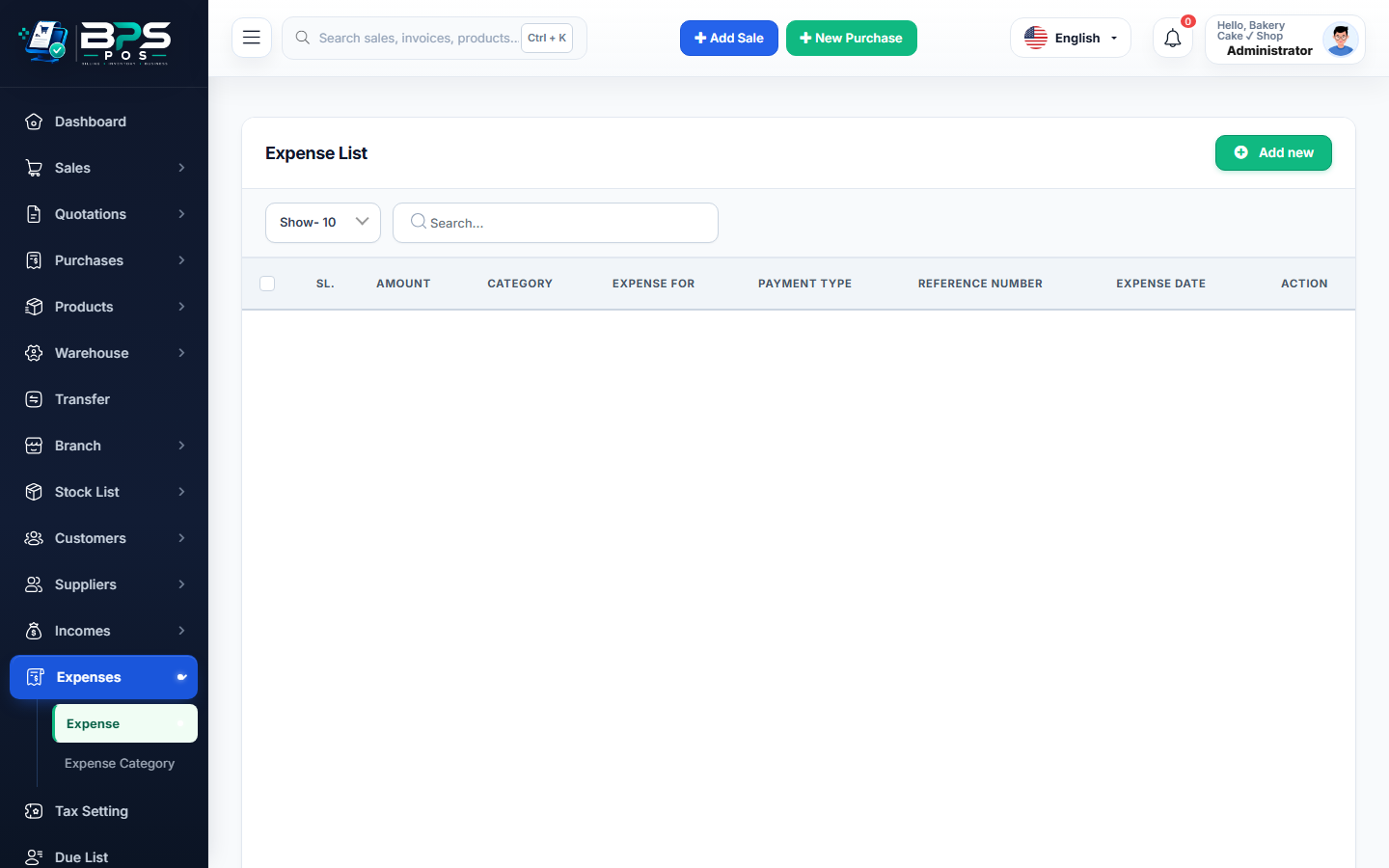
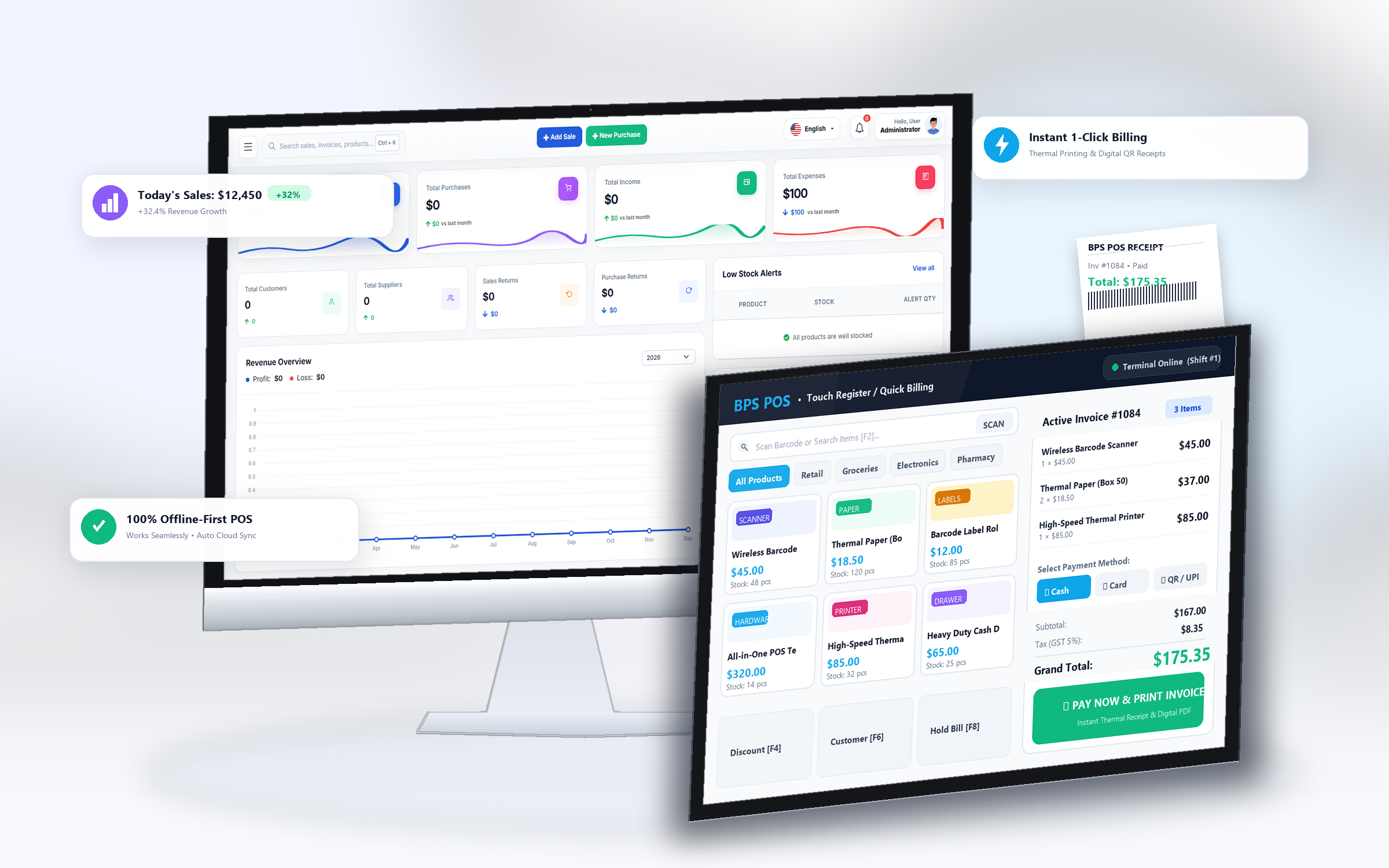
Figure: BPS POS Add Daily Expense with Receipt Image Upload in BPS POS.
Logging a Daily Expense Entry
Follow these step-by-step instructions inside your BPS POS dashboard to configure and operate this workflow seamlessly:
- Go to Finance → Expenses → Add Expense.
- Select Expense Category: Pick the relevant category (e.g., Generator Fuel).
- Choose Payment Source: Select Cash Register Till, Petty Cash Drawer, or Bank Account.
- Input Amount & Tax: Enter amount paid and deductible input tax.
- Attach Bill Photo: Click "Upload Receipt" to attach a photo taken from your phone camera or PDF document.
- Save: Cash balances deduct immediately, and the expense is posted to the Profit & Loss statement.
BPS POS Pro Tip & Best Practice
Logging expenses directly from the cashier counter automatically synchronizes with the active shift's "Cash Out" total.
Why This Workflow Matters for Your Business
Lightning-Fast Operations
Eliminate cashier bottlenecks, reduce customer waiting times, and handle peak rush hours effortlessly.
100% Financial Accuracy
Automate tax math, stock deductions, and ledger balances to eliminate human calculation mistakes.
Frequently Asked Questions (FAQs)
Can expense attachments be viewed during annual tax audits?
Yes! Clicking any expense row in the report displays the attached high-res receipt image instantly.
Ready to Upgrade Your Retail Billing?
Experience lightning-fast billing, automated stock tracking, and multi-branch control with BPS POS.
Explore Pricing Plans →