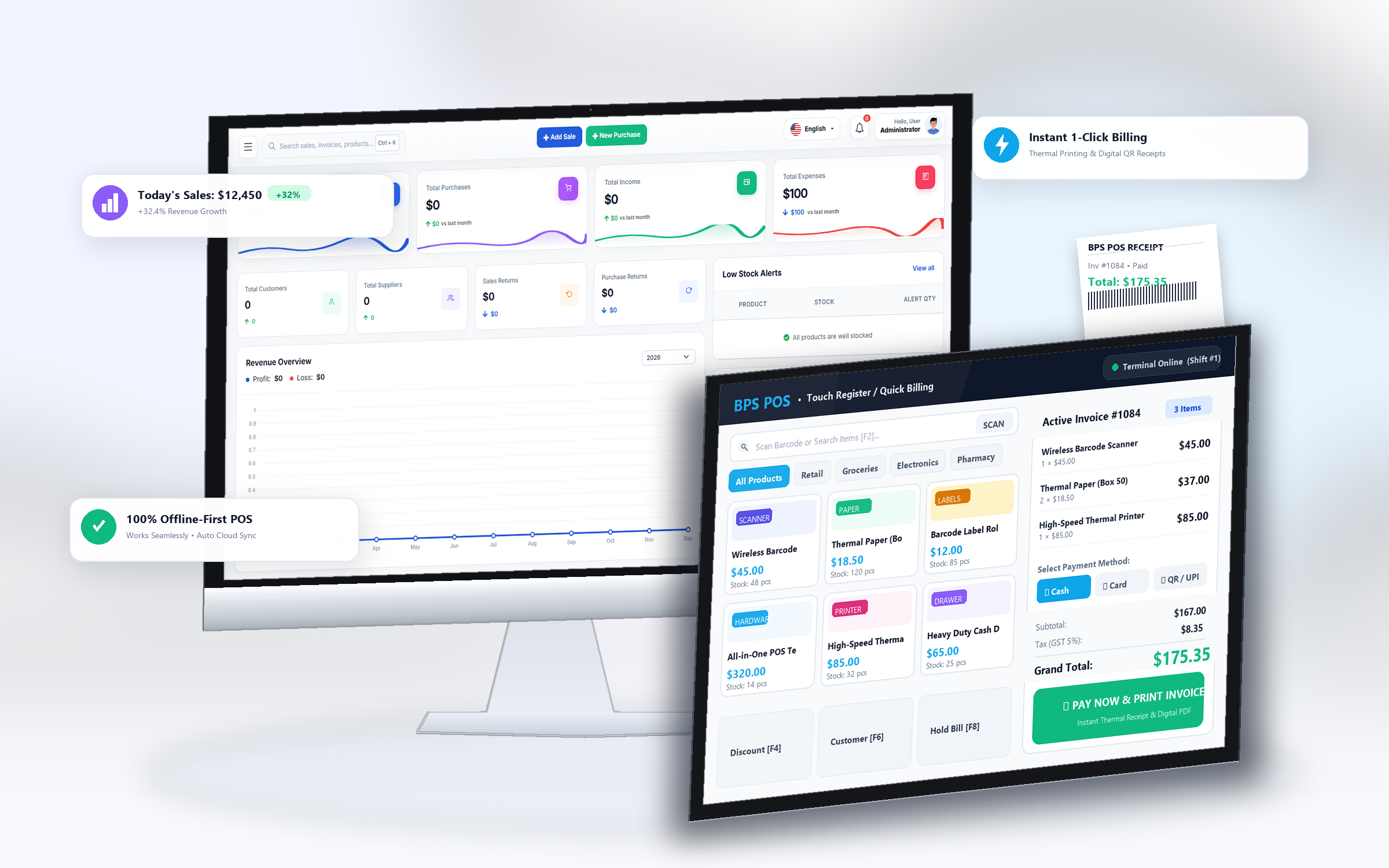
Manual calculation of customer change is the #1 cause of cashier till discrepancies. BPS POS automatically computes change return amount and triggers physical cash drawer opening.
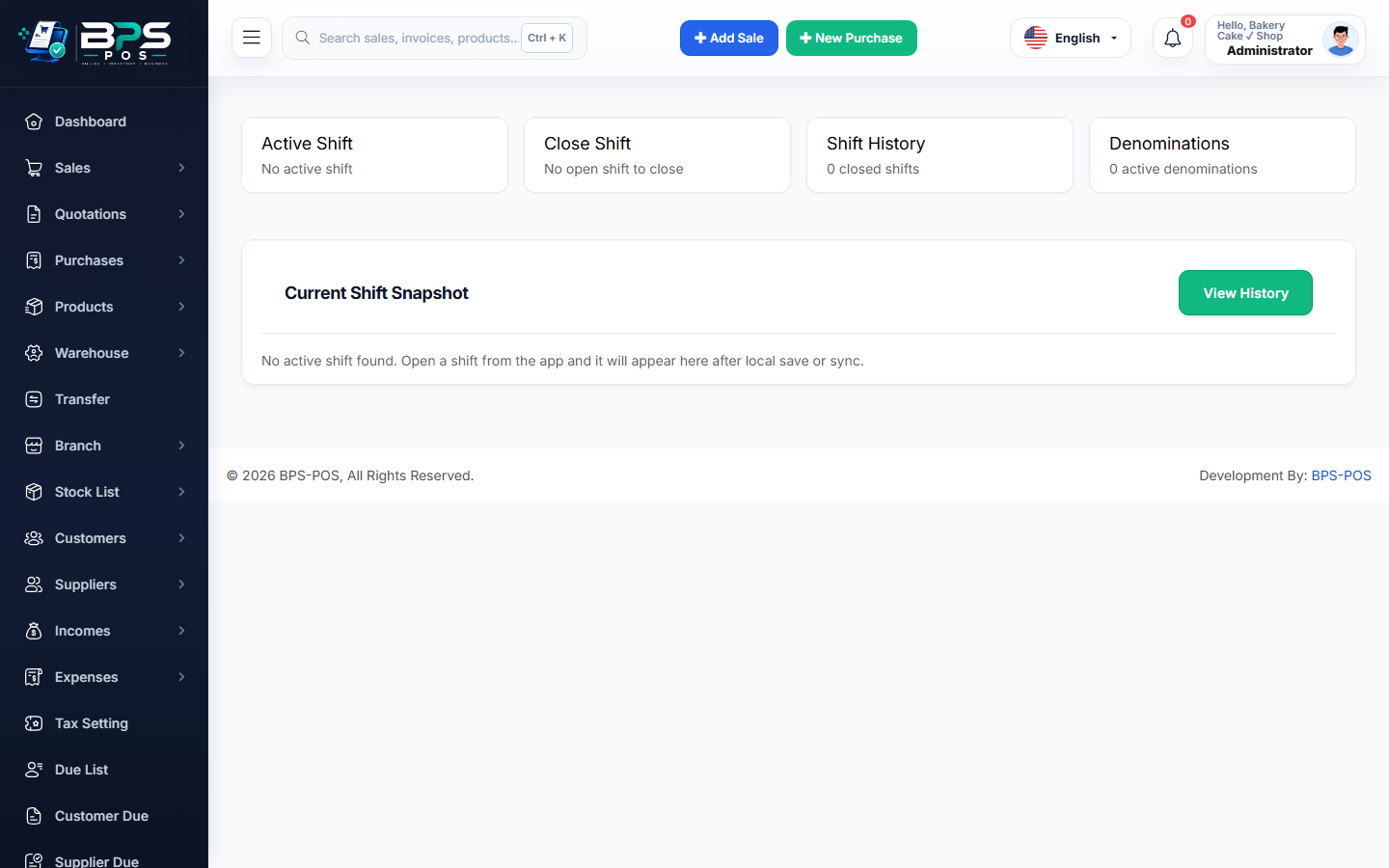
Figure: BPS POS Cash Payment and Change Return Calculator in BPS POS.
Processing Cash Payments on POS Counter
Follow these step-by-step instructions inside your BPS POS dashboard to configure and operate this workflow seamlessly:
- Click Pay Now: Once all items are scanned, click the green Pay Now / Checkout button or press F4.
- Select Cash Mode: By default, Cash payment mode is pre-selected.
- Enter Received Cash: Type the cash amount handed by the customer (or click quick cash denomination buttons like $50, $100, $500).
- View Return Change: The screen displays the exact Change to Return in high-visibility large green text.
- Submit & Print: Complete the sale to update inventory, add revenue to cash register, and print receipt.
BPS POS Pro Tip & Best Practice
Connect an RJ11 cash drawer cable to your thermal printer. BPS POS will send an automatic pulse to pop the drawer open upon cash payment submit.
Why This Workflow Matters for Your Business
Lightning-Fast Operations
Eliminate cashier bottlenecks, reduce customer waiting times, and handle peak rush hours effortlessly.
100% Financial Accuracy
Automate tax math, stock deductions, and ledger balances to eliminate human calculation mistakes.
Frequently Asked Questions (FAQs)
Can cashiers record partial cash payment and remaining as credit?
Yes! Enter the partial cash amount in the Cash box and select "Due / Credit" for the balance remainder.
Ready to Upgrade Your Retail Billing?
Experience lightning-fast billing, automated stock tracking, and multi-branch control with BPS POS.
Explore Pricing Plans →