Scattered vendor contact numbers and misplaced bank details cause payment delays. BPS POS Supplier Directory centralizes supplier accounts, contact persons, tax registration numbers, and banking details.
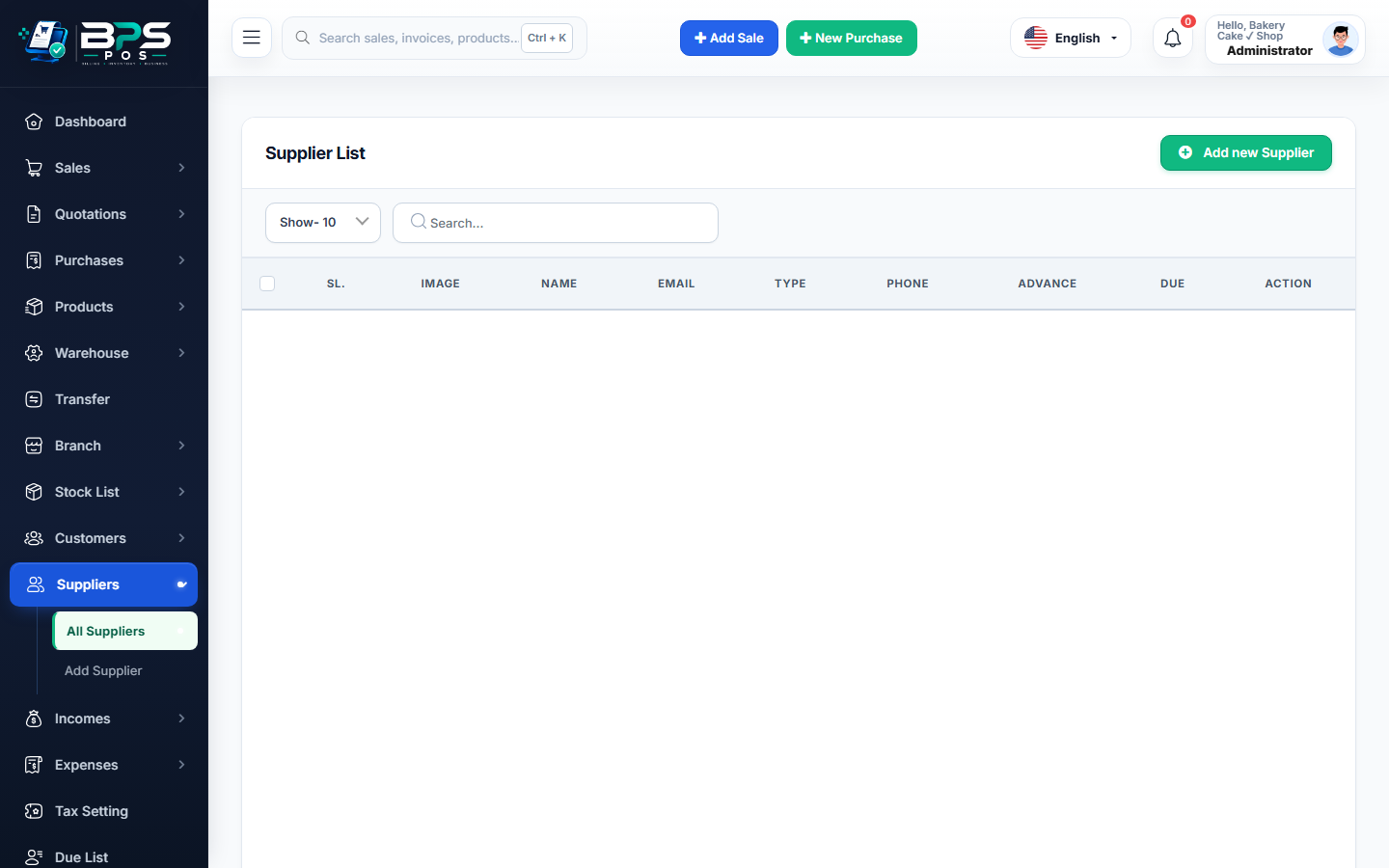
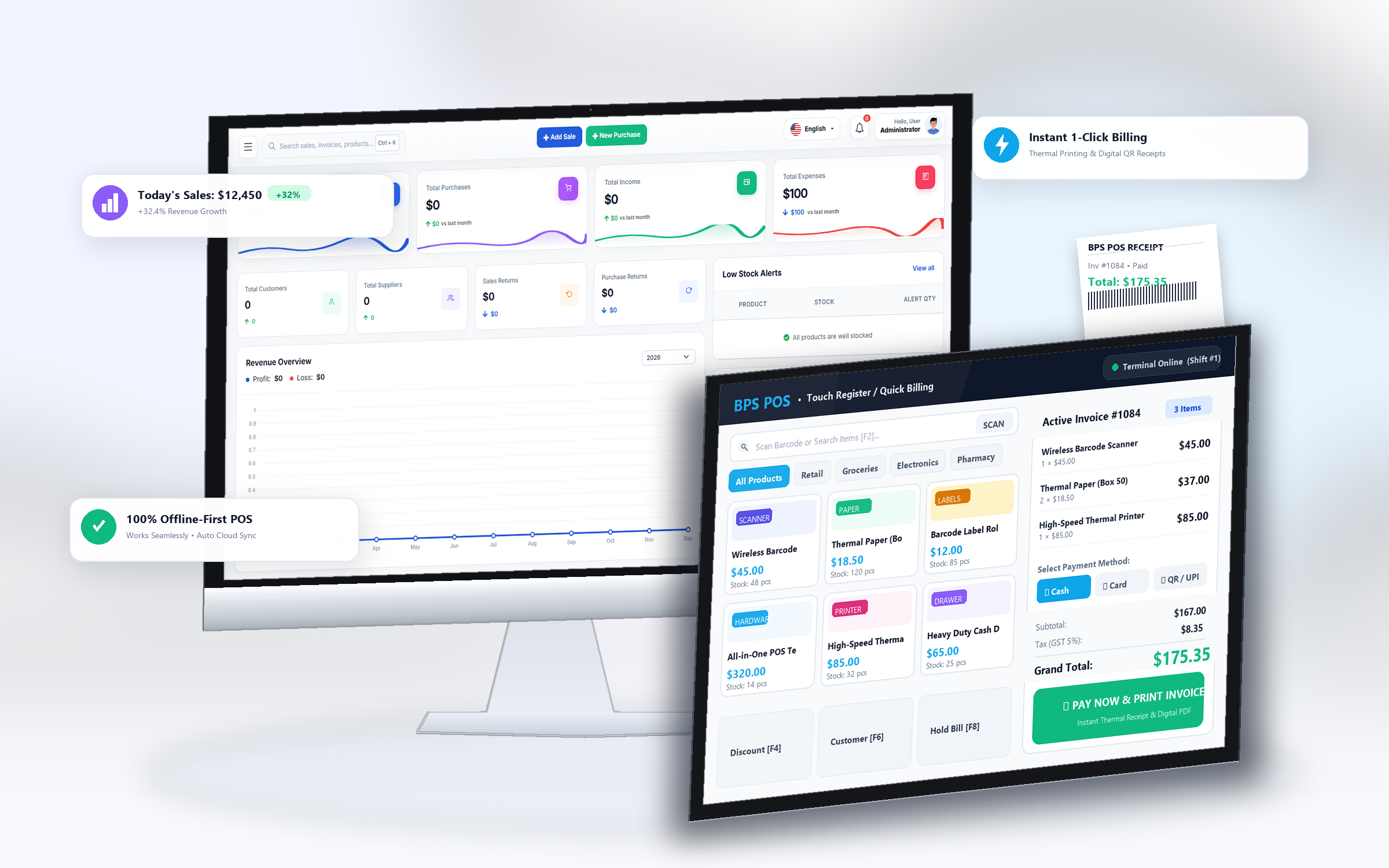
Figure: BPS POS Supplier Profiles and Banking Information in BPS POS.
Managing Supplier Records
Follow these step-by-step instructions inside your BPS POS dashboard to configure and operate this workflow seamlessly:
- Navigate to Parties → Suppliers.
- View Vendor Directory: Inspect current balances, total orders fulfilled, and active contact numbers.
- Edit Banking Information: Store bank name, account title, IBAN, and branch code for smooth electronic wire transfers.
- Review Historical Ledger: Click "View Ledger" to see every goods receipt note and payment voucher ever issued.
- Export Directory: Download vendor records for accounting audits.
BPS POS Pro Tip & Best Practice
Add alternate contact numbers for vendor sales reps and warehouse dispatchers to resolve shipment issues faster.
Why This Workflow Matters for Your Business
Lightning-Fast Operations
Eliminate cashier bottlenecks, reduce customer waiting times, and handle peak rush hours effortlessly.
100% Financial Accuracy
Automate tax math, stock deductions, and ledger balances to eliminate human calculation mistakes.
Frequently Asked Questions (FAQs)
Can I deactivate a supplier without deleting their past purchase history?
Yes, toggle their status to "Inactive" to hide them from new purchases while preserving historical data.
Ready to Upgrade Your Retail Billing?
Experience lightning-fast billing, automated stock tracking, and multi-branch control with BPS POS.
Explore Pricing Plans →