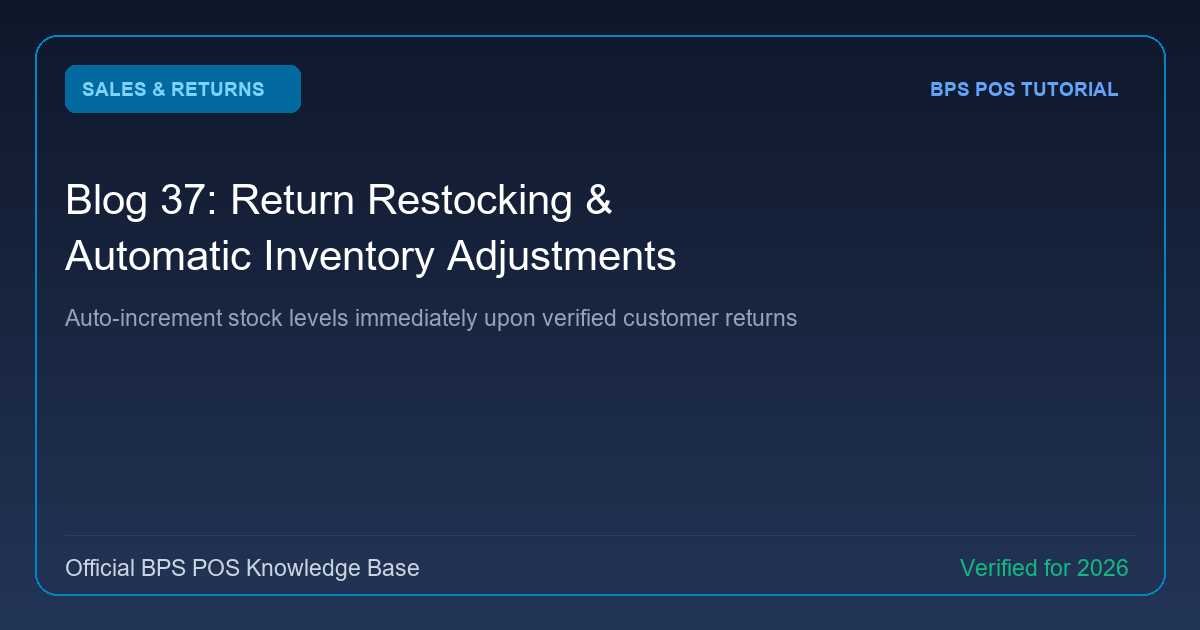
When products are returned, managing inventory correctly is critical. BPS POS gives you the choice to restock returned goods into sellable inventory or divert damaged goods into quarantine write-off.
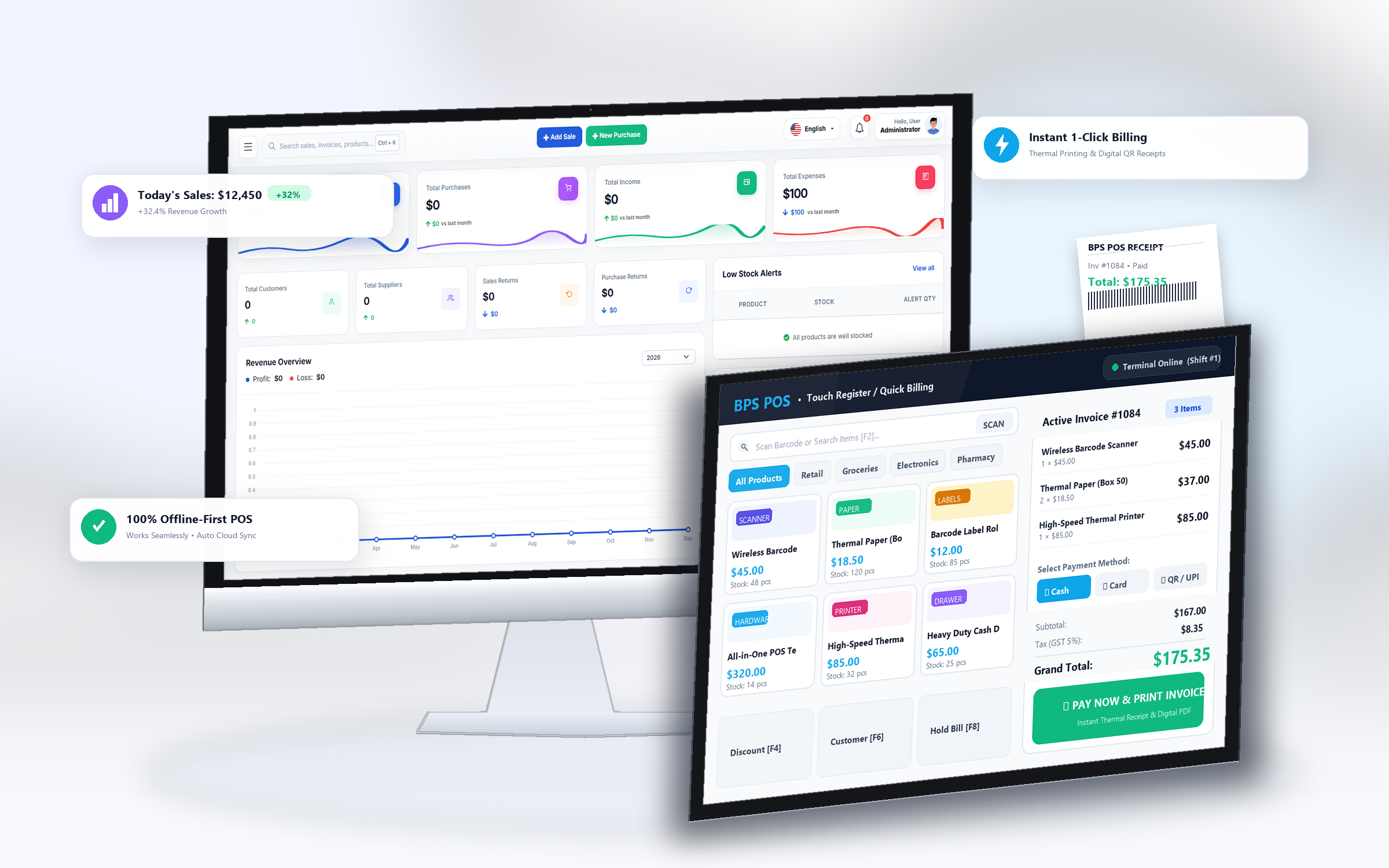
Figure: BPS POS Return Restocking and Inventory Adjustment Options in BPS POS.
Restocking vs Damaged Goods Allocation
Follow these step-by-step instructions inside your BPS POS dashboard to configure and operate this workflow seamlessly:
- During Return Creation: Check the Restock to Inventory toggle.
- For Sellable Returns: Keep toggle ON. BPS POS increments main shop stock immediately upon saving.
- For Defective / Damaged Returns: Toggle OFF or select "Move to Damaged / Scrap". Stock is flagged as damaged and not offered on POS.
- Generate Vendor Return: Use the Damaged Stock log to initiate supplier purchase returns and claim vendor credit.
BPS POS Pro Tip & Best Practice
Check the Stock History log after processing a return to view the automated timestamped entry tagged with "Sales Return #ID".
Why This Workflow Matters for Your Business
Lightning-Fast Operations
Eliminate cashier bottlenecks, reduce customer waiting times, and handle peak rush hours effortlessly.
100% Financial Accuracy
Automate tax math, stock deductions, and ledger balances to eliminate human calculation mistakes.
Frequently Asked Questions (FAQs)
Does restocked inventory inherit the original batch number and expiry date?
Yes, for batch-tracked items, BPS POS restores returned units to their original batch ID.
Ready to Upgrade Your Retail Billing?
Experience lightning-fast billing, automated stock tracking, and multi-branch control with BPS POS.
Explore Pricing Plans →